Connect Your Indeed Account
Connecting your Indeed account to Classet enables you to sponsor job postings directly through the platform, increasing visibility on Indeed and Glassdoor. This one-time setup process is completed during initial configuration.
Steps
1. Open Settings
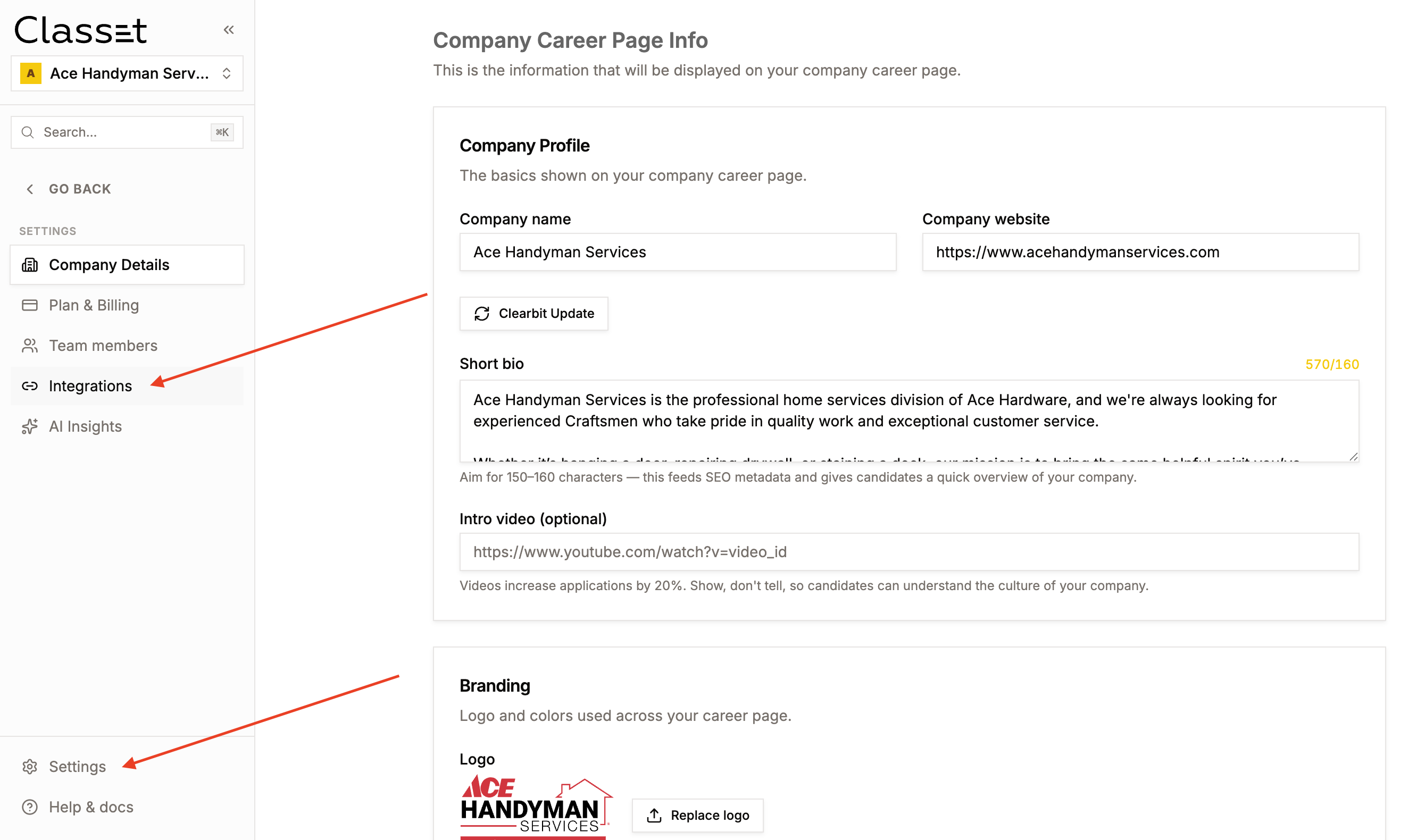
2. Navigate to Integrations
Access the Integrations section via the left sidebar.
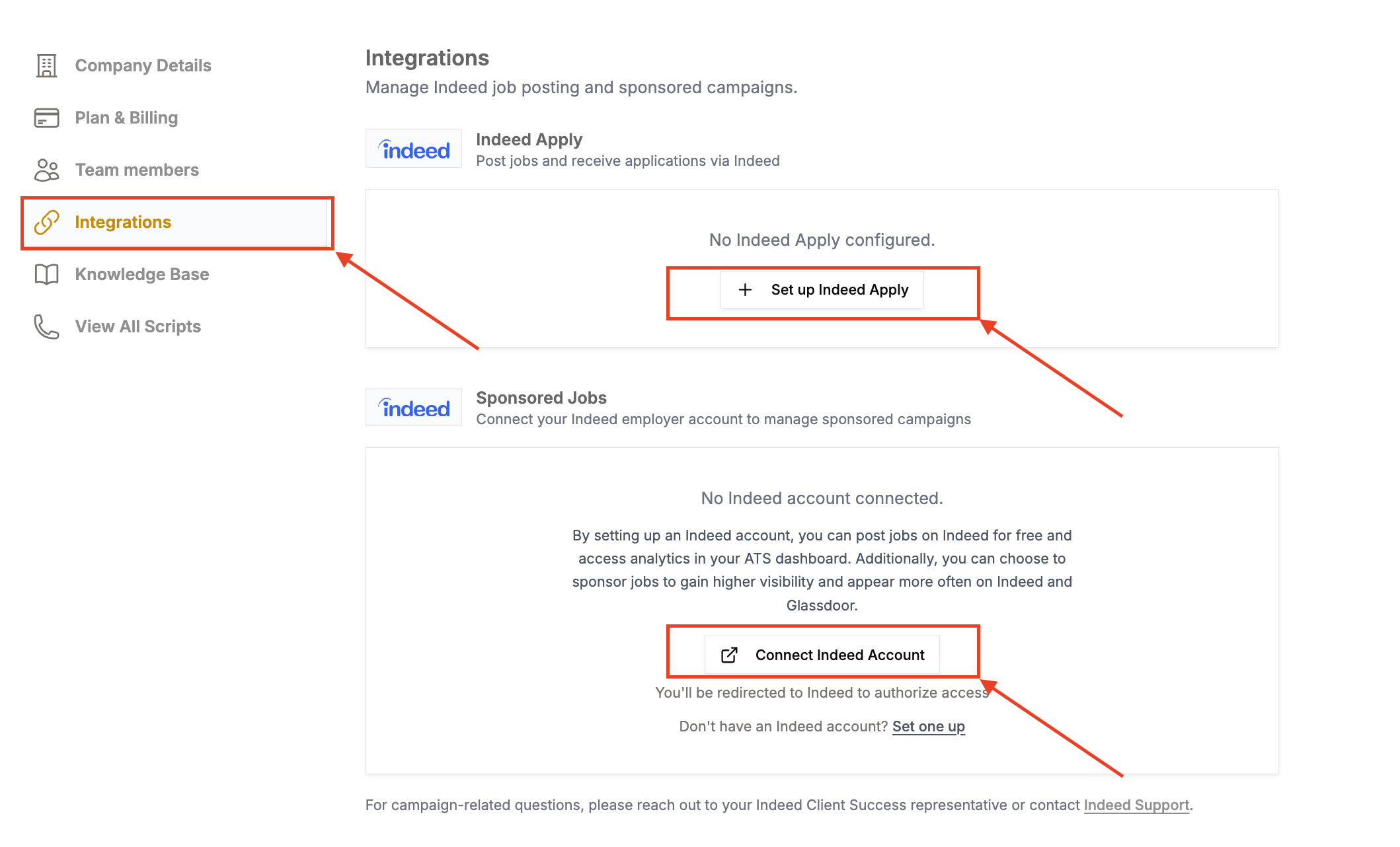
3. Connect Indeed Account
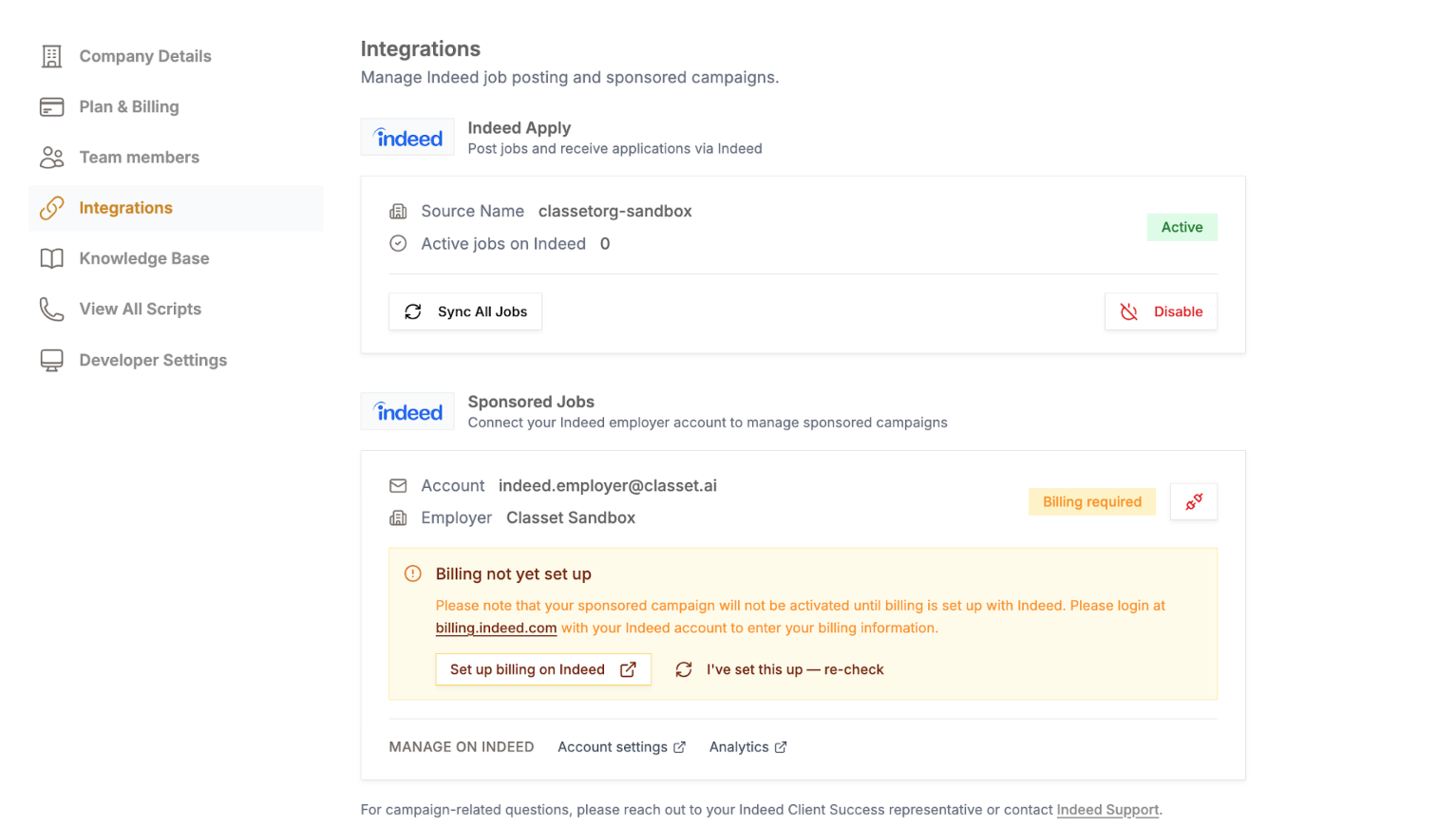
Locate the Sponsored Jobs section and select "Connect Indeed Account" and "Set up Indeed Apply." You'll be redirected to Indeed for authorization.
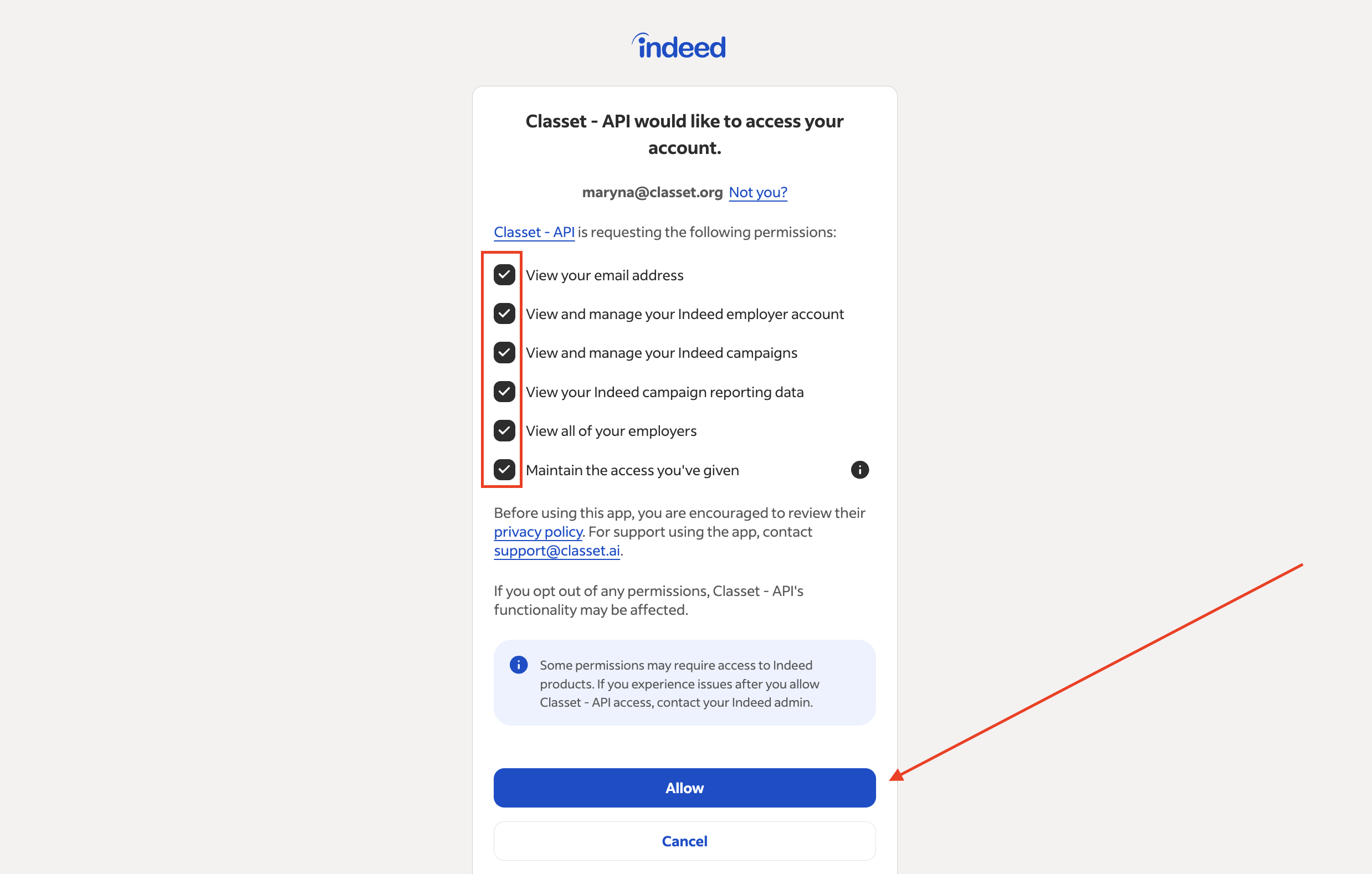
4. Grant Permissions
Ensure all permission checkboxes are selected, then click "Allow."
Note: Users without an Indeed account can create one directly from the Integrations page without leaving Classet.
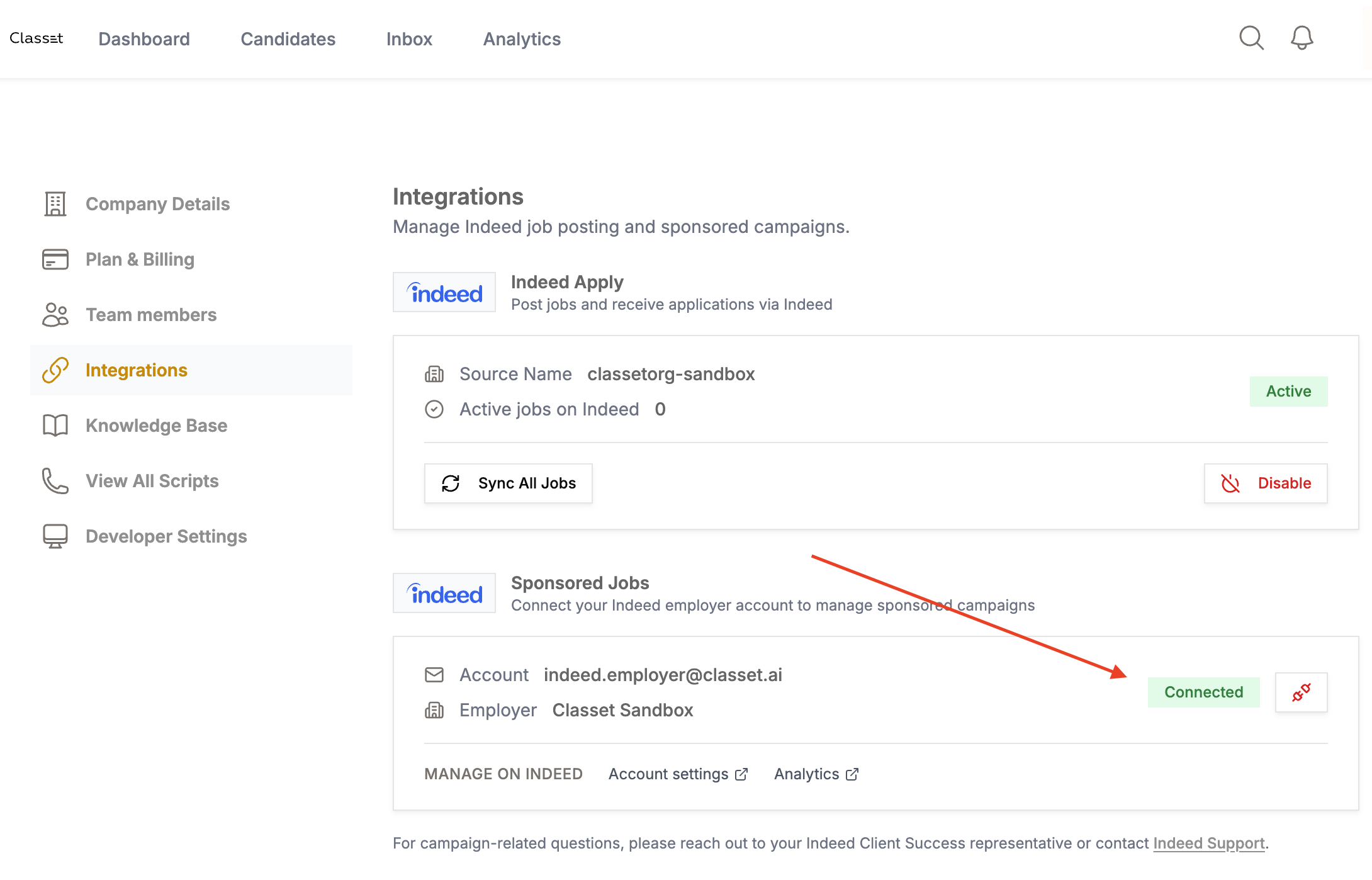
5. Confirm Connection
After returning to Classet, the Sponsored Jobs section will display your account email with a "Connected" status.
Important: Job sponsorship requires active billing setup in Indeed. If billing isn't configured, a warning message with a setup link will appear.
For additional assistance, contact success@classet.ai.
Reconnecting your Indeed account
Applies to Classet ATS accounts. If Classet is integrated with your own ATS instead, your posting and sponsorship run through that system.
Connections occasionally need to be redone — after an Indeed password change, a change to who owns the Indeed account, or a change to your Classet account structure. Signs you're disconnected: jobs stop syncing to Indeed, sponsorship options disappear, or applicant flow stops without another explanation.
To reconnect, go through the same connection steps above with the Indeed account that owns your job listings. If you're not sure which Indeed account that is, or reconnecting doesn't take, email success@classet.ai and we'll send you a fresh connection link for your account.
One caution for multi-location companies: connect the Indeed account that should own the jobs for your branch. Connecting a personal or wrong-location Indeed account splits your listings across accounts.