Full Step-by-Step Guide on Creating a Script
Overview
When posting or importing a new job position in Classet, you need to apply a screening interview script. The platform is designed so that once you set up instructions, they will be followed consistently—similar to training a new recruiter like "Joy" on your screening process.
Steps to Create a Script
1. Access the Script Library
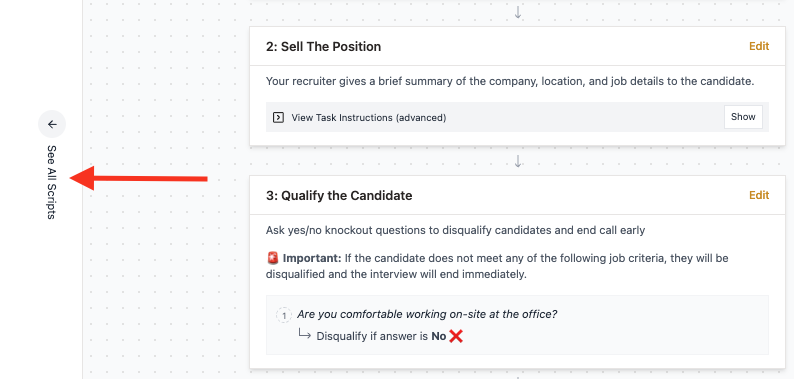
A library of existing scripts is available in the left-hand sidebar.
2. Duplicate or Create New Script
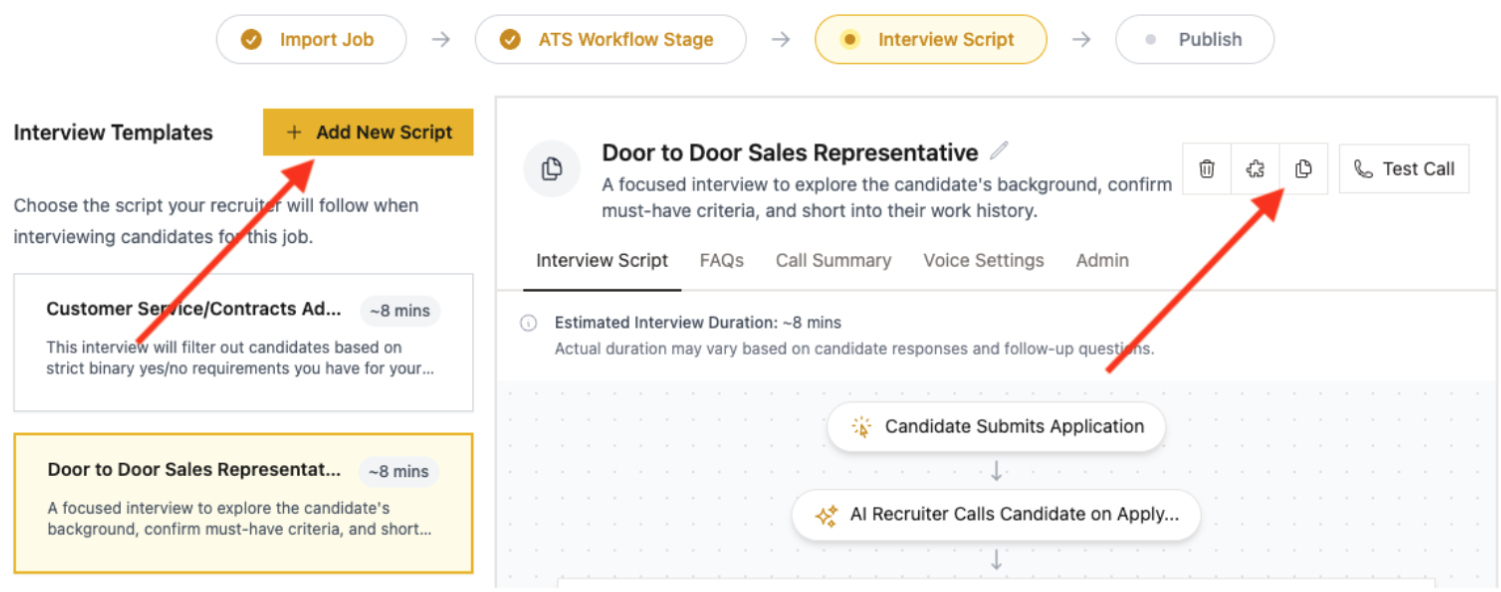
You can either duplicate an existing script or create a new one from scratch.
To duplicate a script (recommended):
- Open the existing script you want to use as a starting point.
- Click the copy (paper) icon in the top-right corner.
- Rename the new script.
- Edit the copy. Changes to the copy do not affect the original script.
To create a script from scratch:
- Click 'Add New Script'.
- Name the script.
- Choose a starting template.
Naming tip: Use a name that is easy to find later, such as "Job Position + Your Name".
Starting templates:
- Standard Interview: a straightforward screening interview.
- Disqualifying Interview: adds a block of knockout questions that check your must-have criteria.
- Resumé Generating Interview: Joy asks about the candidate's previous experience and work history.
The templates are only starting points. You can combine elements from all three while you edit the script.
3. Customize Script Steps
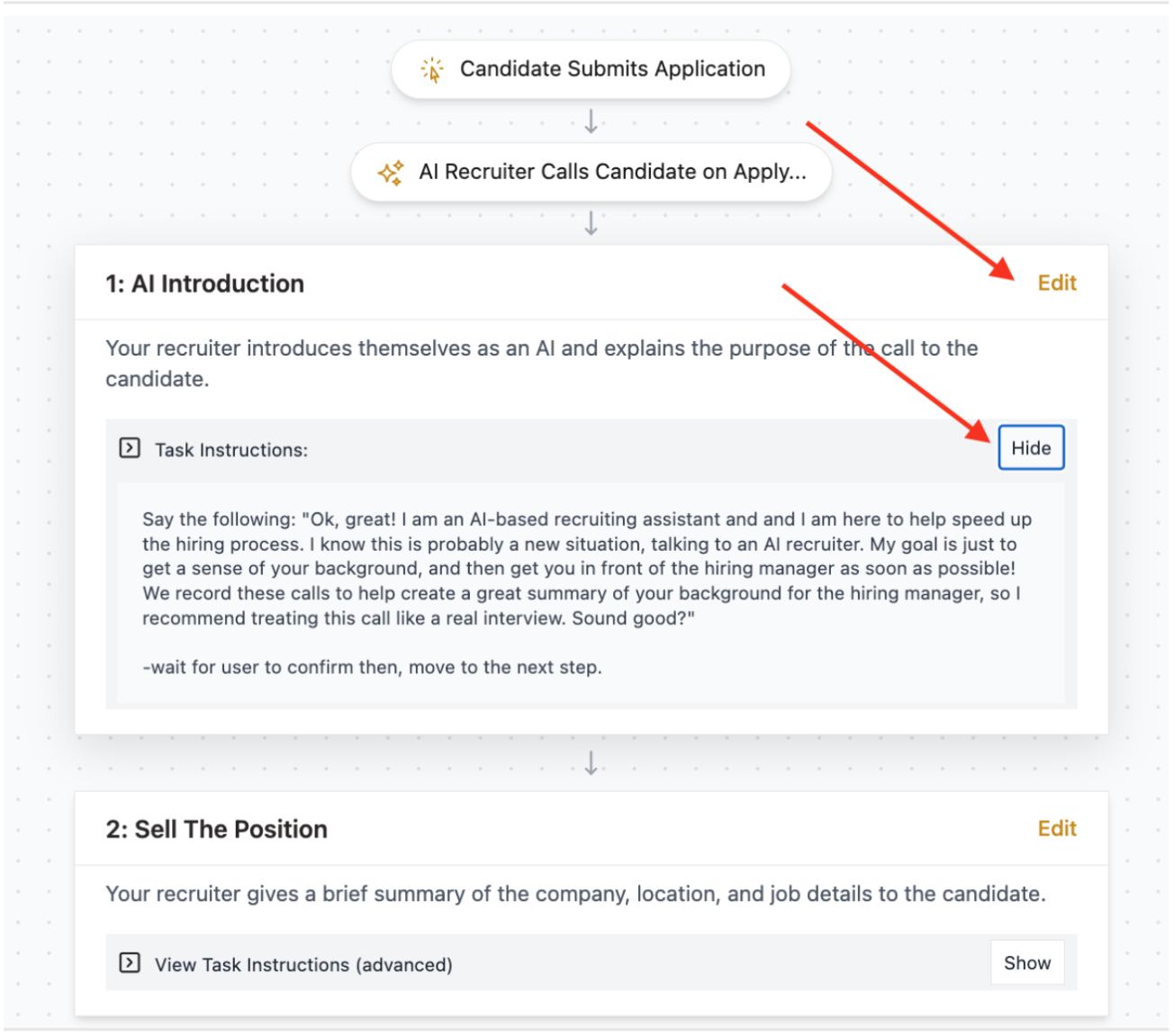
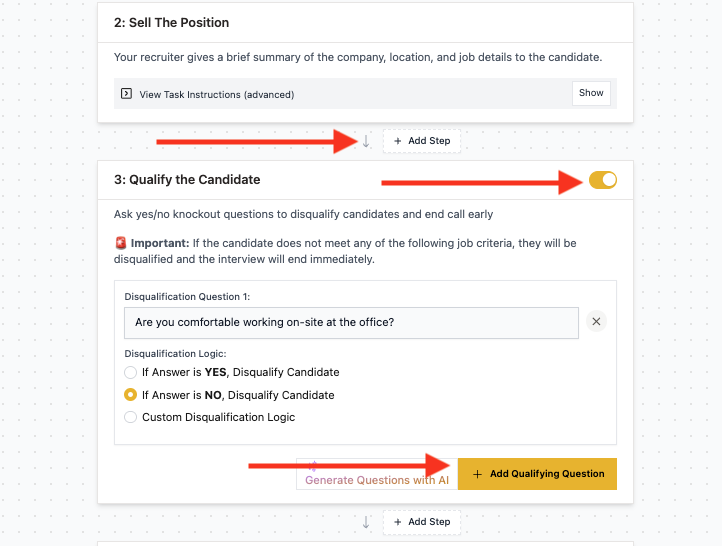
Click 'Edit' to customize instructions for each step. You can:
- Add additional steps (e.g., Qualify the Candidate)
- Switch off stages you don't need
- Add as many questions as desired
Important Notes:
- Make the wording sound natural in real verbal conversation. Read questions aloud to check how they sound.
- Break complex questions into several separate questions to give the candidate space.
- For qualifying sections, use questions with clear objective criteria for screening.
4. Save Your Changes
Click 'Save changes' as you make progress with customization.

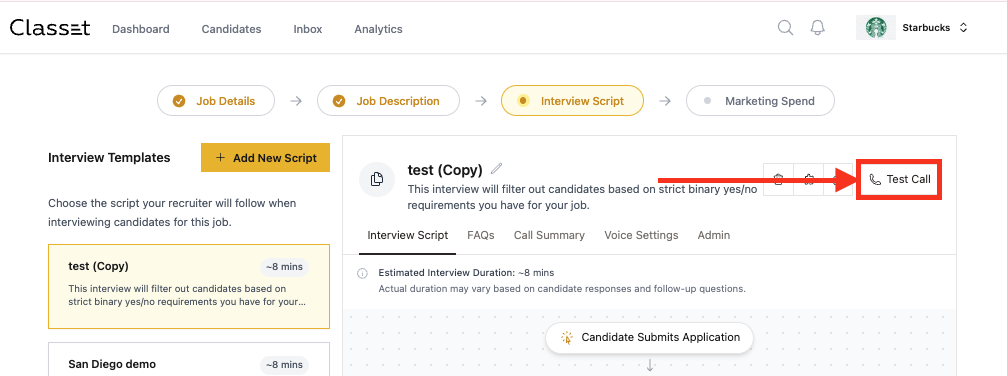
5. Run a Test Call
Use the test call button in the top right corner to preview your script.
- The test call runs in your browser.
- Allow microphone access for Classet when your browser asks.
- Test calls are not stored or recorded.
- Test calls are free. You can run as many as you like.
- Listen to how Joy sounds. Each question should feel natural and conversational.
6. Build Call Summary Structure
Navigate to the 'Call Summary' tab and click 'Edit'. Choose between two default templates (paragraph summary or bullet-point structure) and customize instructions.
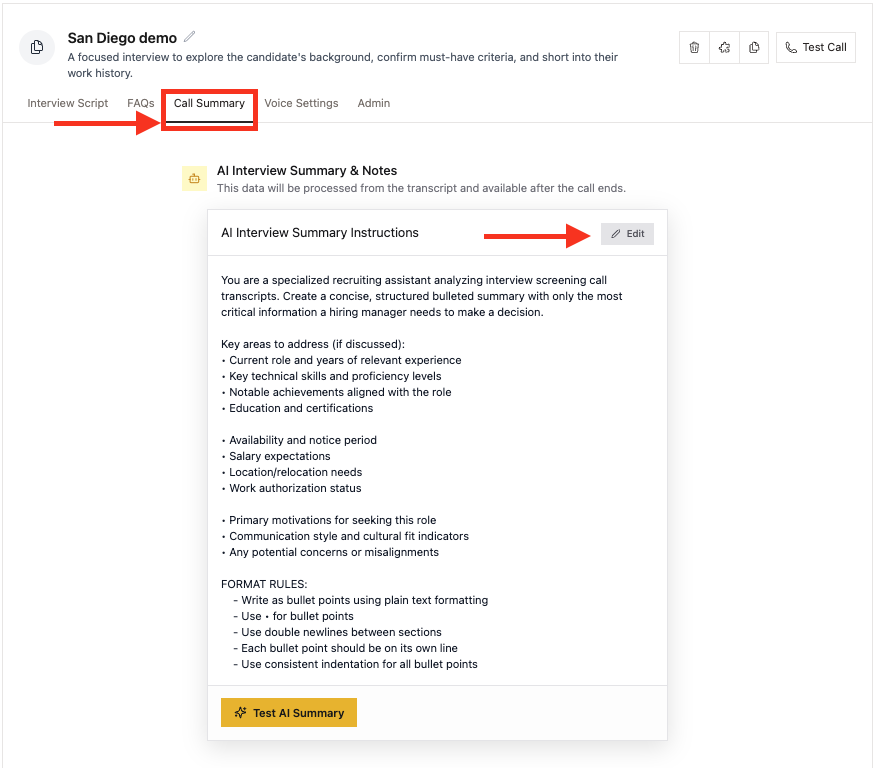
Generate the summary from your script:
- Open the job and click 'Edit Interview Script'.
- Go to 'Call Summary' and click 'Edit'.
- Click 'Generate from Script'.
- Click 'Save Changes'.
'Generate from Script' reads all of your interview questions. It writes a summary prompt that covers every question.
Regenerate the summary after you change the script. After you add, remove, or change questions, click 'Generate from Script' again and save.
Key Guidance:
- Give instructions on content and form just as you would create prompts for ChatGPT.
- Summaries should be sufficient in ~90% of cases. Recruiters shouldn't need to review the full script for each candidate.
7. Write for Speech
Joy reads your script out loud, so a few habits keep her sounding natural:
- Want something spelled out letter by letter? Write it with dots: "D.O.G." reads as the letters. Words in ALL CAPS read naturally as words.
- Mispronounced names or brand words: try a phonetic respelling in the script first (write "Apartner" the way it should sound). If a mispronunciation keeps happening, create a support ticket and we can train the model on a custom pronunciation for your word.
- Read your script aloud before saving. If a sentence is hard to say, it's hard to hear. The test call (step 5) is the fastest check.