Manage Your Job Postings
Overview
Once a job is live, you can edit its details, update the interview script, control publishing, notifications, and AI screening, and manage your Indeed sponsored campaign — all from the dashboard without having to create a new posting.
Access Job Menu
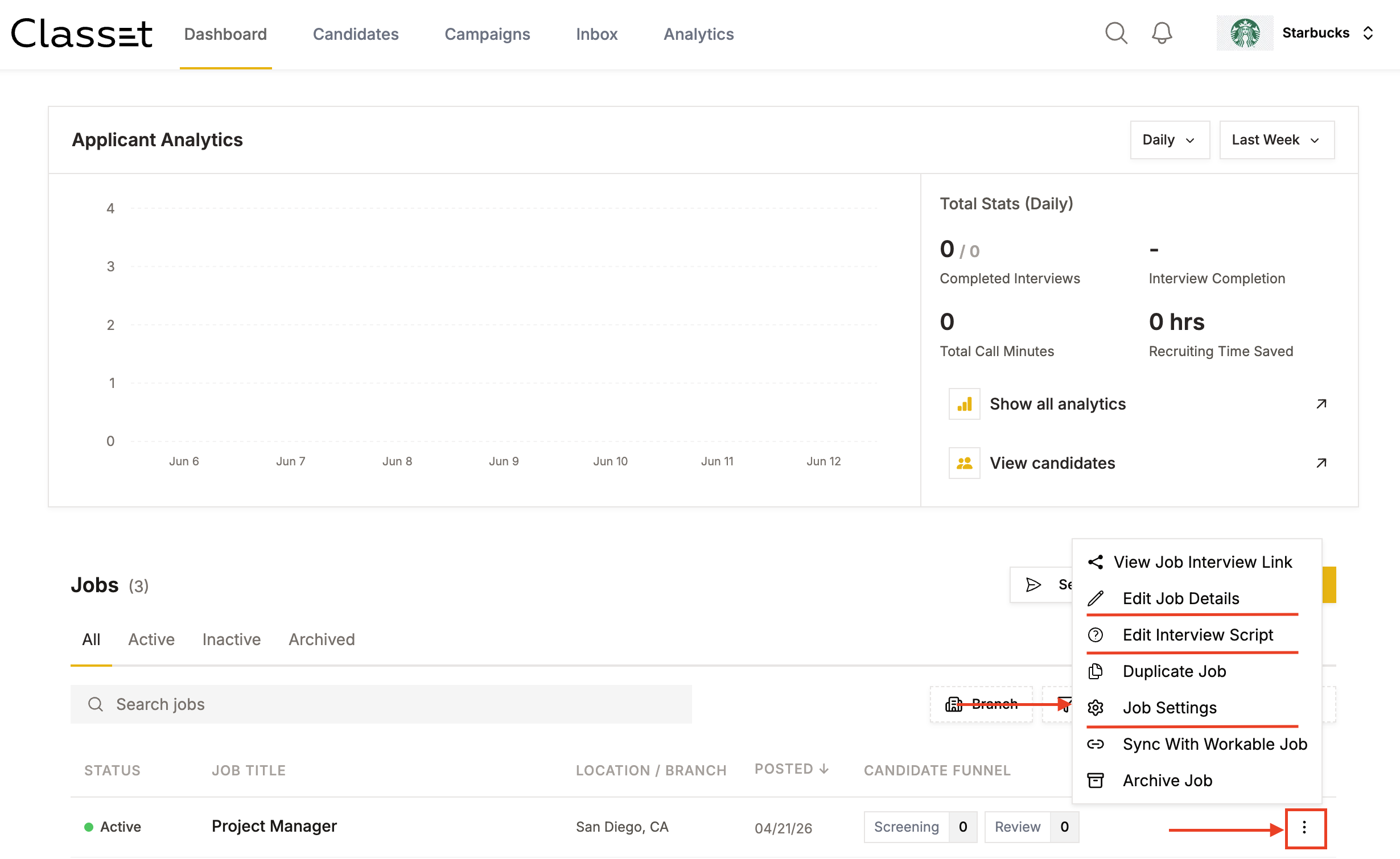
From the Dashboard, find your job in the Jobs list and click the ⋮ (three-dot) menu on the right. You'll see options to:
- Edit Job Details — title, compensation, location, employment type, knockout questions, and job description
- Edit Interview Script — update the questions Joy asks candidates
- Job Settings — publish/unpublish, notifications, AI recruiter, and job marketing
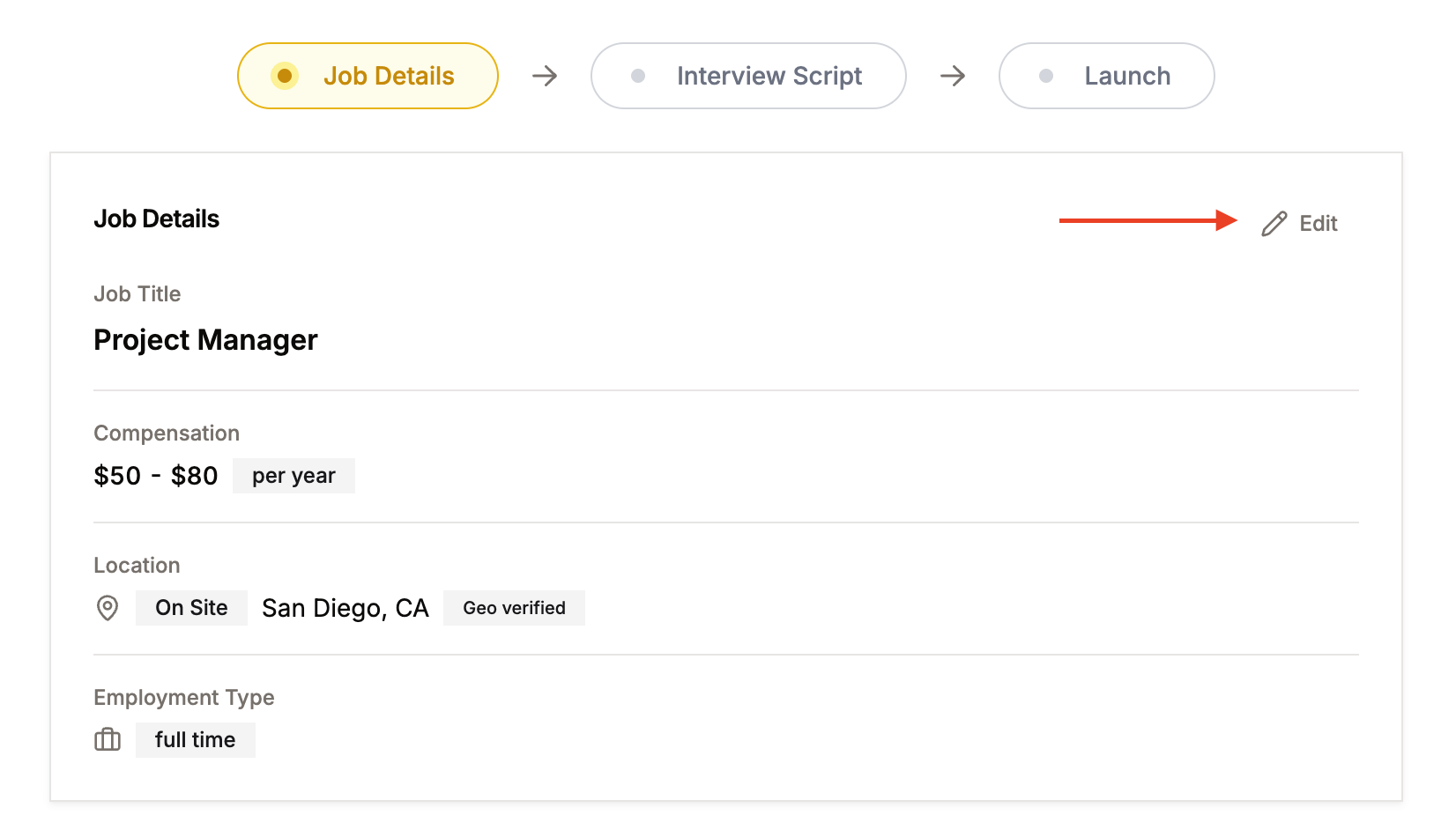
Edit Job Details
Click Edit Job Details. In the Job Details section, click Edit (top right) to make changes to the title, compensation, location, and employment type. When done, click Done to save that section.

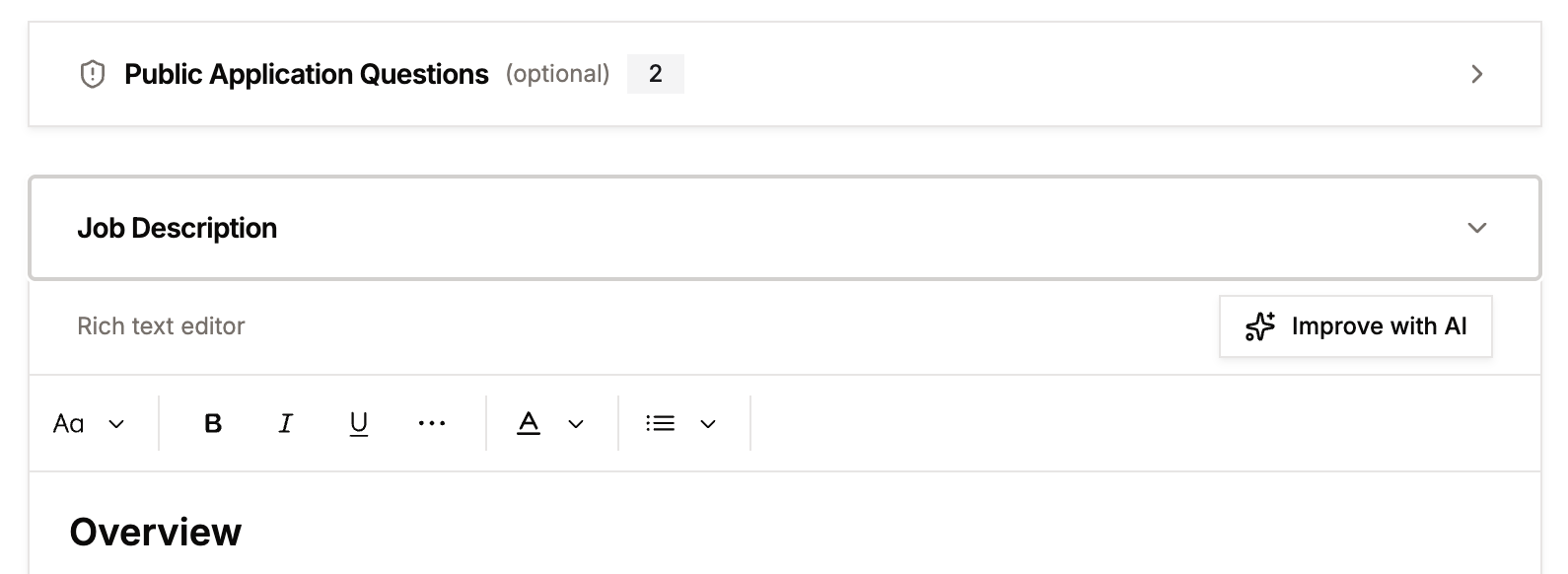
Scroll down to update the knockout questions or the job description. The description editor includes an Improve with AI button if you want to rewrite it quickly.
When you've finished all edits, click Continue at the bottom right to save and move to the script step.
Job Settings
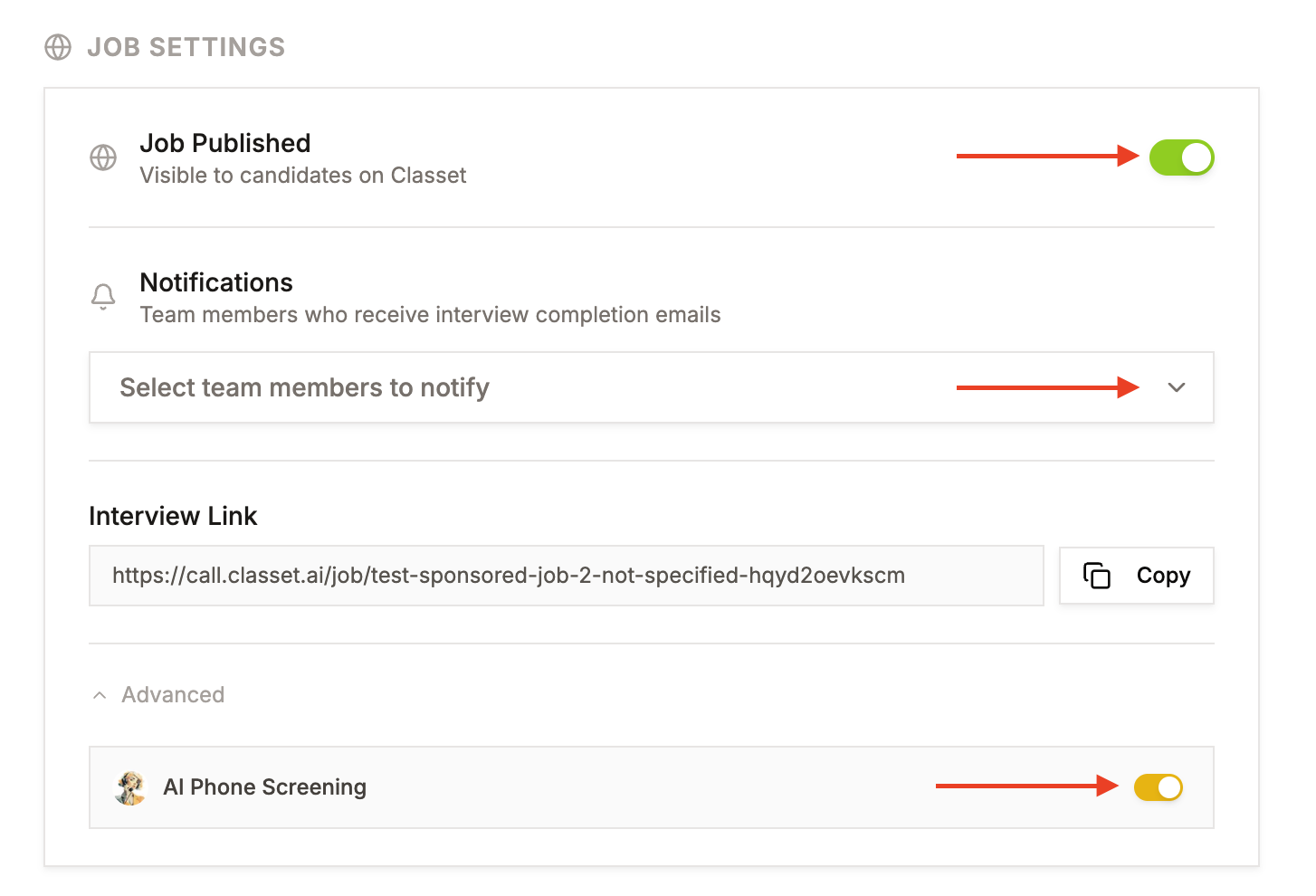
Click Job Settings from the three-dot menu. From here you can:
Publish / Unpublish — Toggle Job Published on or off. When off, the job is no longer visible to candidates on Classet.
Notifications — Select team members who should receive an email each time a candidate completes a call. See Job notifications below.
AI Phone Screening — Toggle AI Phone Screening (under Advanced) on or off to enable or disable Joy for this position.
Job notifications
The team members you select under Notifications are the job's subscribers. Subscribers get an email for that job when:
- A candidate completes a call with Joy.
- A candidate opts out of the AI screener.
To add a subscriber, click the dropdown arrow on the right side of the subscriber field and select the team member. To remove one subscriber, click the X next to their name. To remove all subscribers at once, click the larger X on the right side of the field.
Job Marketing (Indeed Sponsored Campaign)
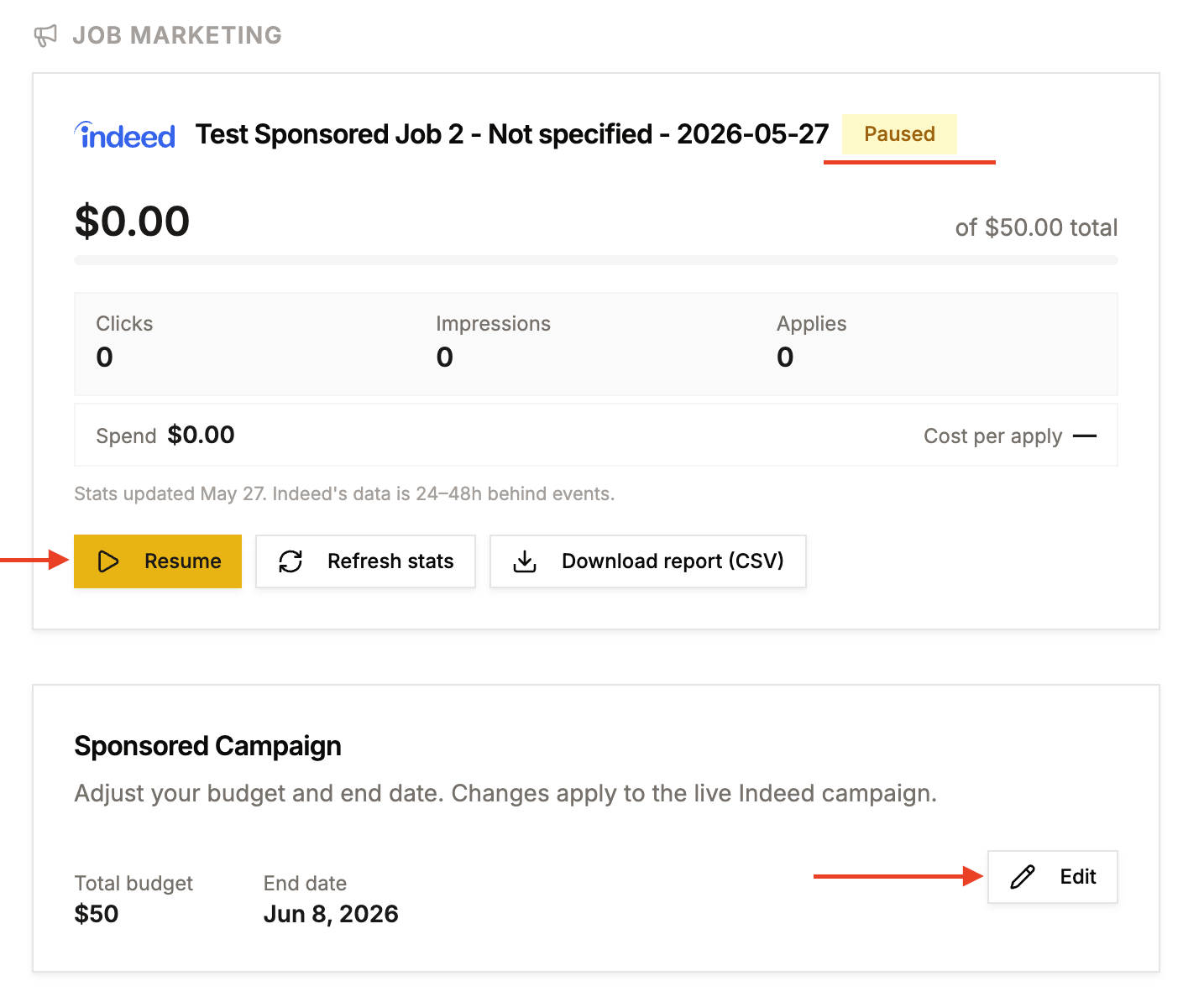
If you sponsor the job through your connected Indeed account, scroll to the Job Marketing section in Job Settings to manage that campaign.
View performance — See Clicks, Impressions, Applies, Spend, and Cost per apply. Stats are updated from Indeed and may be 24–48 hours behind.
Pause / Resume — Click Pause to stop the campaign (no new sponsored traffic). Click Resume to restart it.
Tip: Pausing a campaign stops Indeed sponsored traffic but keeps the job published. If you want to stop all new applications, unpublish the job in Job Settings as well.
Refresh stats — Click Refresh stats to pull the latest data from Indeed.
Download report — Click Download report (CSV) to export campaign data.
Edit budget or end date — In the Sponsored Campaign section, click Edit to change the total budget or campaign end date. Changes apply to the live Indeed campaign immediately.
My job isn't live — what to check
Applies to Classet ATS accounts. If Classet is integrated with your own ATS instead, your posting and sponsorship run through that system.
Working from a job that should be live but isn't showing, check in this order:
- Publish status in Classet. Open the job and confirm it's published, not paused or in draft. A paused job comes back with one click.
- The job source on Indeed. If Classet shows the job published but you can't find it in your Indeed Employer Console, your job source likely isn't claimed to your account yet — or the job is Flagged (sponsorship required). Both are covered step by step in Getting Your Jobs to Show on Indeed.
Still stuck after those checks? Email us the job name and location and we'll trace it.
Closing a job when the role is filled
Unpublish the job so it stops accepting applicants, and action the candidates still in your pipeline — disposition or archive them so nobody is left waiting. If you sponsored the job on Indeed, end the sponsored campaign too, so budget stops spending on a filled role.