Reviewing Candidates & Understanding Statuses
Open your candidate pipeline
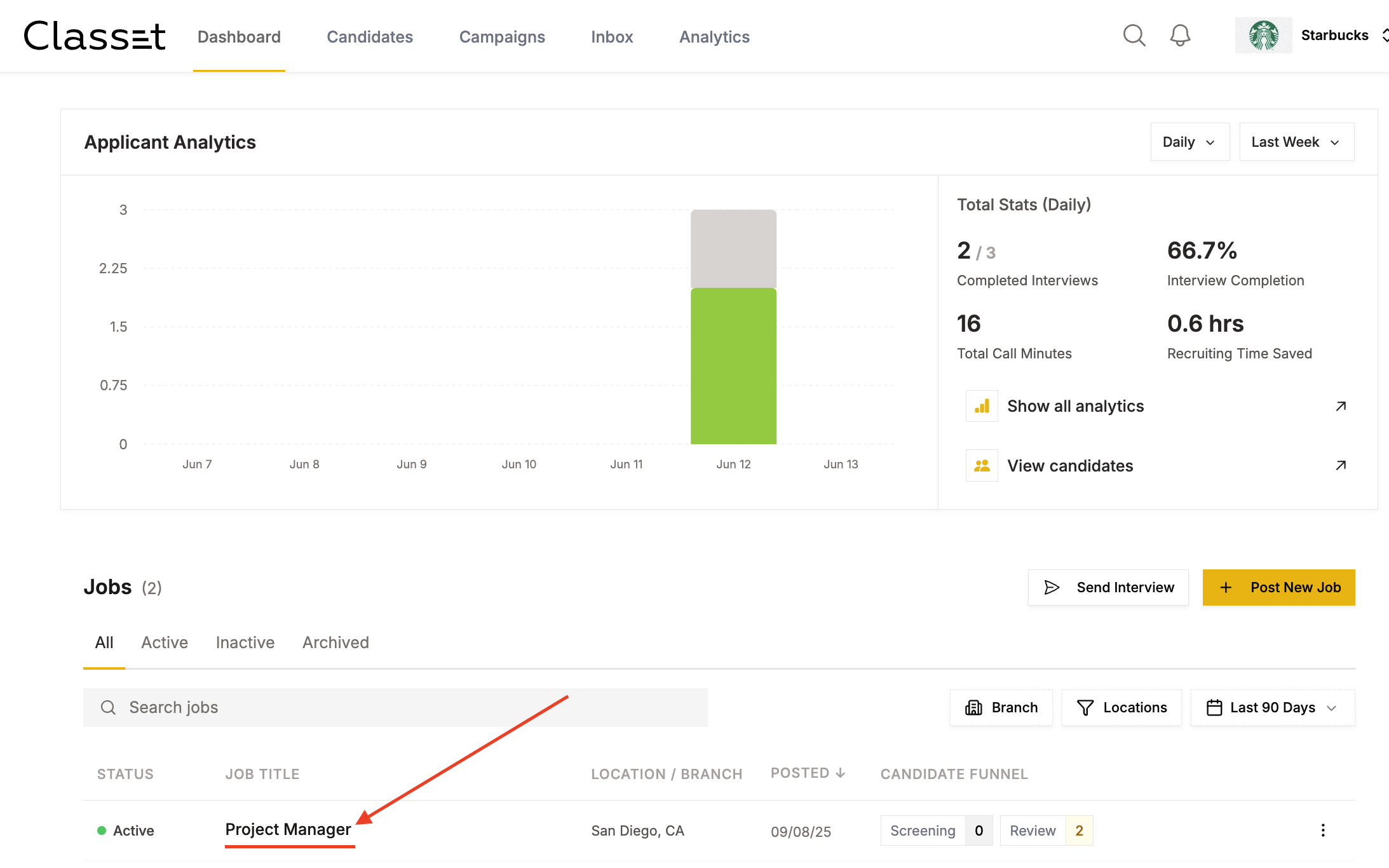
From the Dashboard, click on the job title you want to review to access the full candidate list for that position.
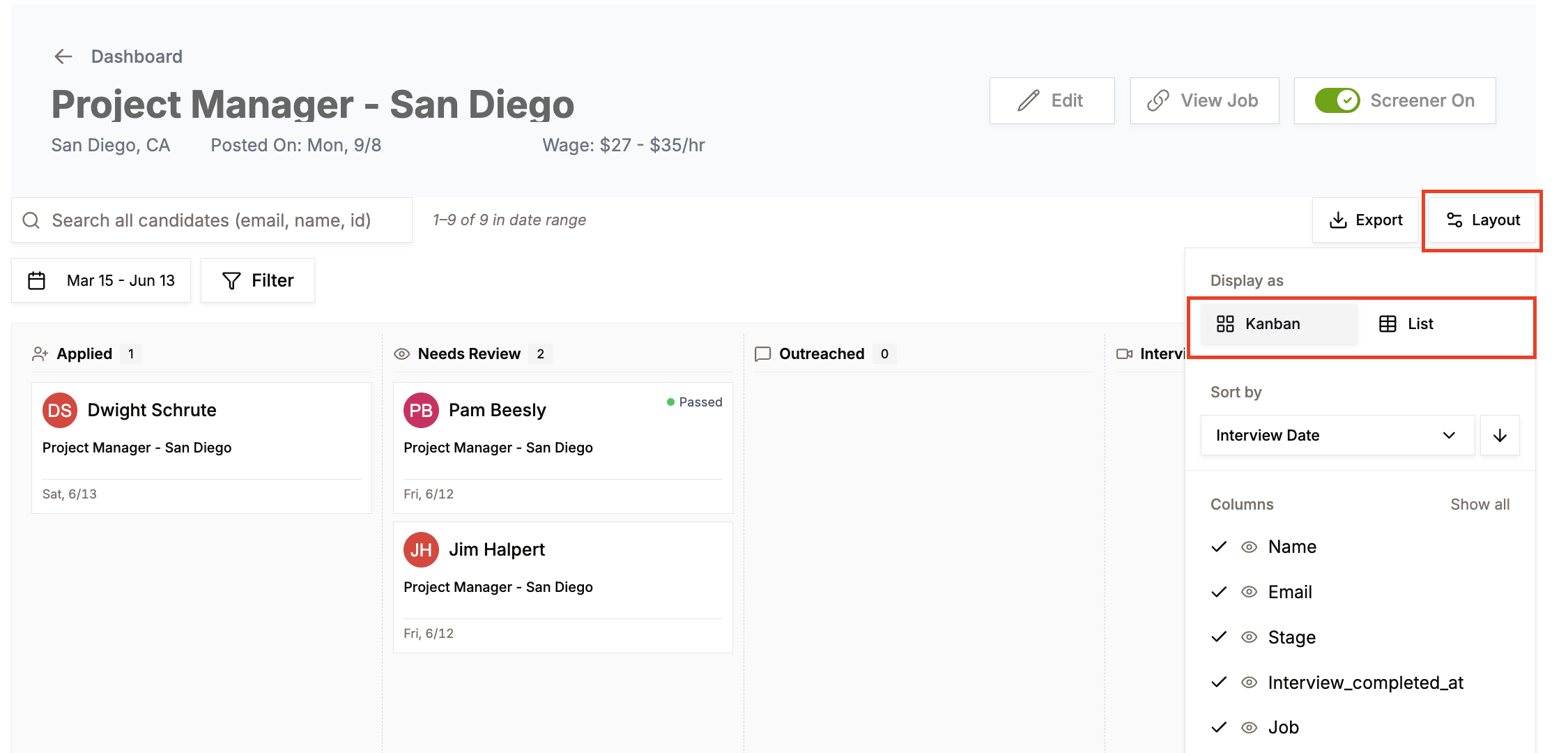
Choose your layout
In the top right, click Layout to switch between views:
- Kanban — candidates displayed as cards organized by stage with horizontal scrolling
- List — all candidates in a sortable spreadsheet view
You can also customize which columns display and sort candidates (such as by Interview Date).
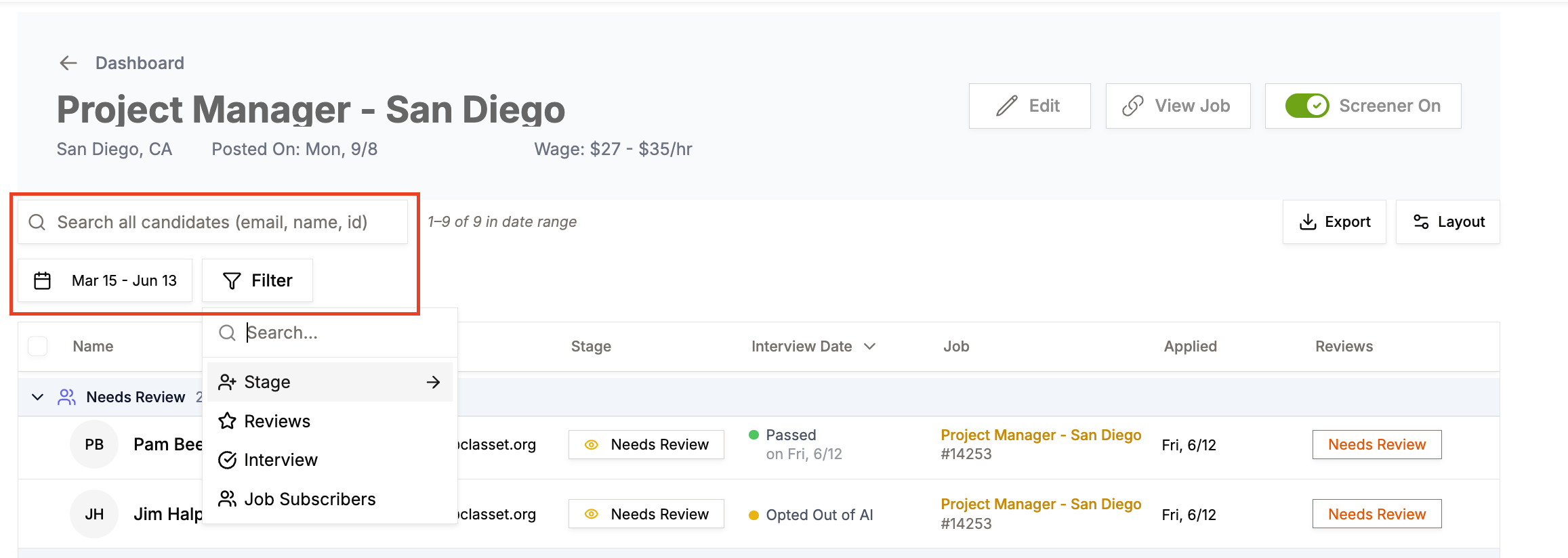
Search and filter
On the left side, you can:
- Search by candidate name, email, or ID
- Filter by date range
- Filter by Stage, Interview outcome, Reviews, or other criteria
To quickly locate candidates needing attention, filter by Stage → Needs Review.
Understanding candidate stages
| Stage | What it means |
|---|---|
| Applied | Either still being contacted by Joy (if using AI Screening) or has applied and met baseline criteria (if not using AI Screening) |
| Needs Review | Candidates who completed the AI interview—priority candidates |
| Outreached | Automatically assigned when you message via Classet SMS; manual stage if calling directly |
| Interview | Manual stage to track candidate progress across your team |
| Offer | Manual stage to track candidate progress across your team |
| Hired | Manual stage to track candidate progress across your team |
| Disqualified | Failed to meet must-have requirements or deemed not a fit |
| Future Leads | Applied but remained unresponsive and never started the interview |
Review an individual candidate
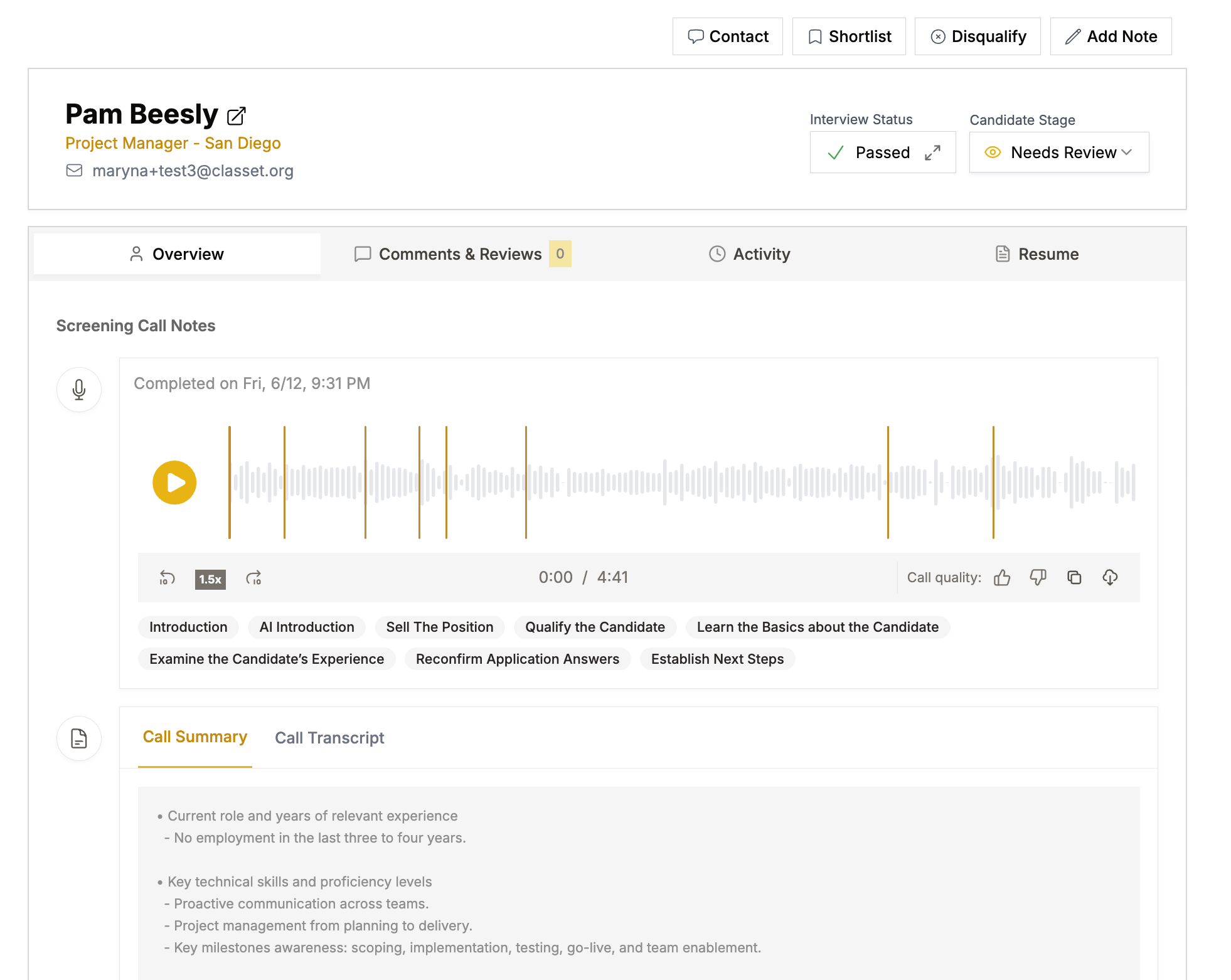
Click a candidate's name to open their profile and access:
- Contact info (email and phone)
- Full Joy interview recording (playable at 1x, 1.5x, or 2x speed)
- Call Summary with structured answers and key details
- Call Transcript for detailed review
- Tabs for Overview, Comments & Reviews, Activity, and Resume
Take action on a candidate
From the top right of the candidate profile:
- Contact — send SMS directly through Classet
- Shortlist — flag for easy reference
- Disqualify — remove from consideration
- Add Note — leave internal team notes
- Candidate Stage dropdown — move to next stage

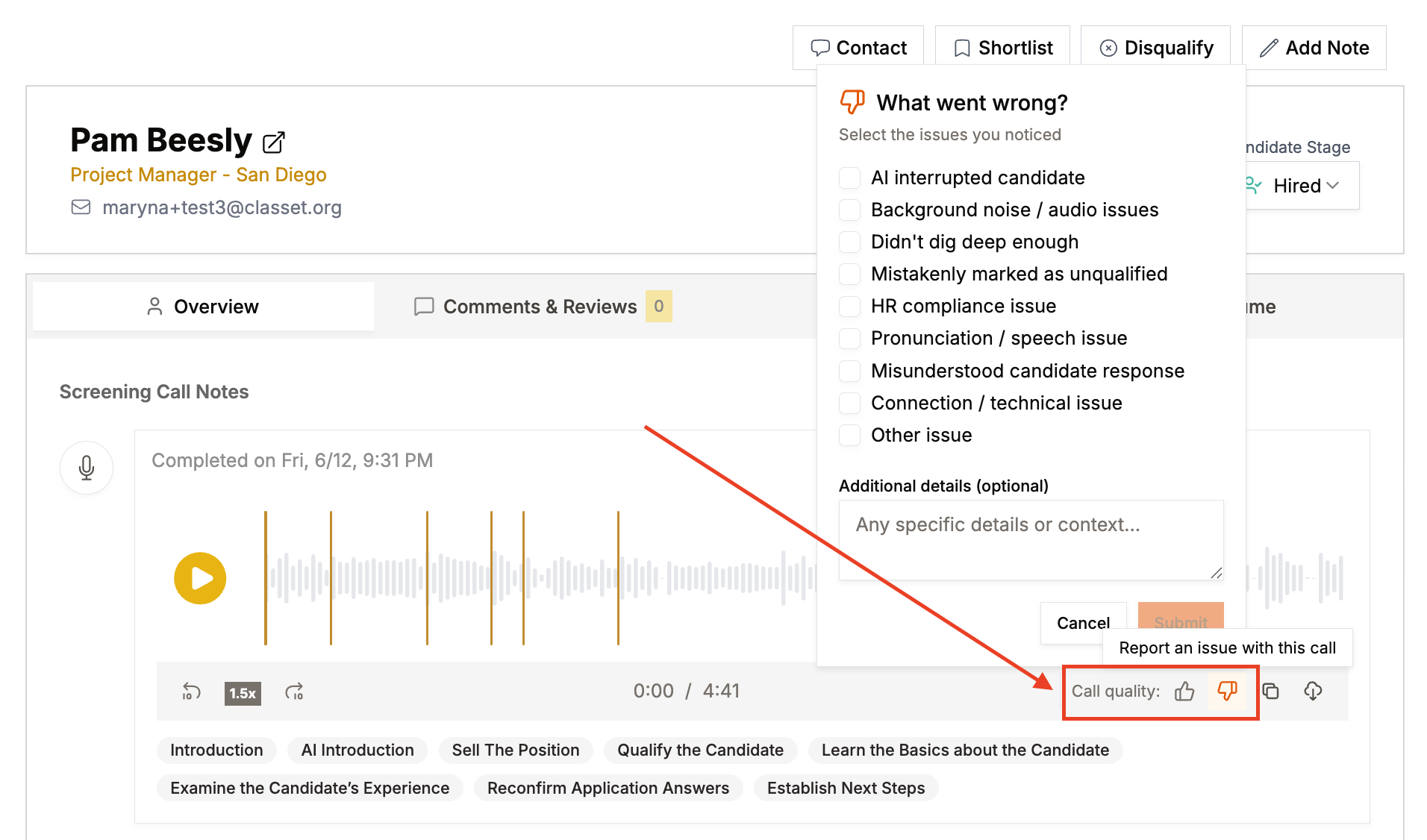
Report a call quality
If issues occurred during a Joy call, click the thumbs down icon next to "Call quality" in the Screening Call Notes section. Select the issue type (background noise, incorrect qualification, misunderstood response) and add context before submitting. This feedback helps Classet improve future calls.
For additional assistance, contact success@classet.ai