
Automatically Import and Activate Jobs from Your ATS with Job Automations
If your company uses an applicant tracking system (ATS) connected to Classet, Job Automations can bring your jobs into Classet and turn on AI screening for you, with no manual setup for each job. You create a rule once, and Classet checks your ATS every hour for new jobs that match it.
Which ATSs are supported?
Job Automations works with many, but not all, ATS integrations. Examples include Bullhorn, Workday, iCIMS, SAP SuccessFactors, UKG Pro, BambooHR and JazzHR. This is not the full list. If your ATS isn't mentioned here, or you aren't sure whether your account is set up for Job Automations, contact us at success@classet.ai.
What a rule does
Looks at the jobs in your connected ATS and finds new jobs that match your conditions.
Imports each matching job into Classet and turns on AI screening using the interview script you chose.
Runs automatically every hour while the rule is active. You can also run it on demand.
Create an automation
1. Open Job Automations
In the left sidebar, under Hiring Tools, click Job Automations. The page has two tabs: Automations (your rules) and Activity (a history of what each rule has done). Click + New automation.
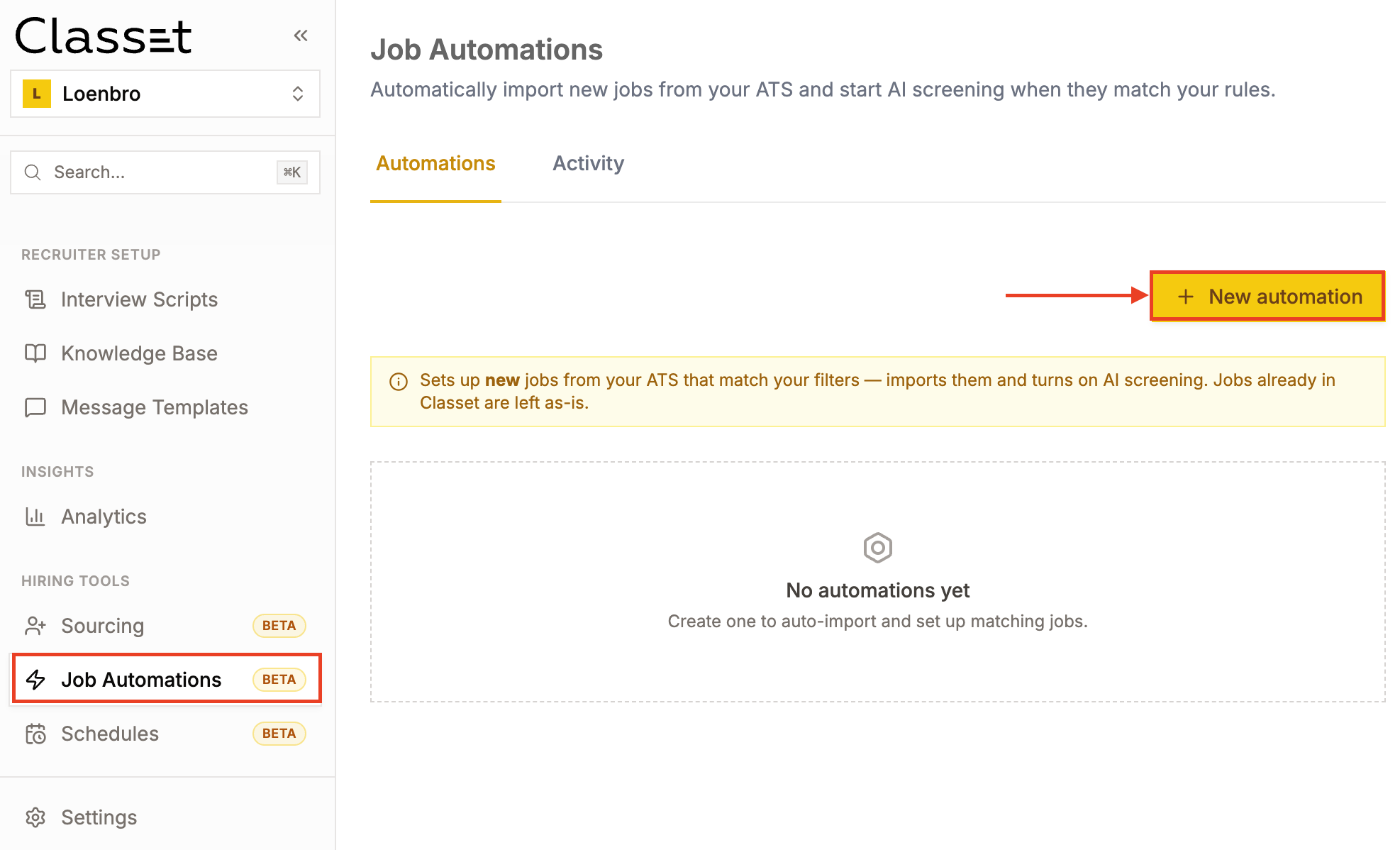
2. Name your automation
Give the rule a name that describes the jobs it covers, for example CDL Drivers — West.
3. Choose a timeframe (optional)
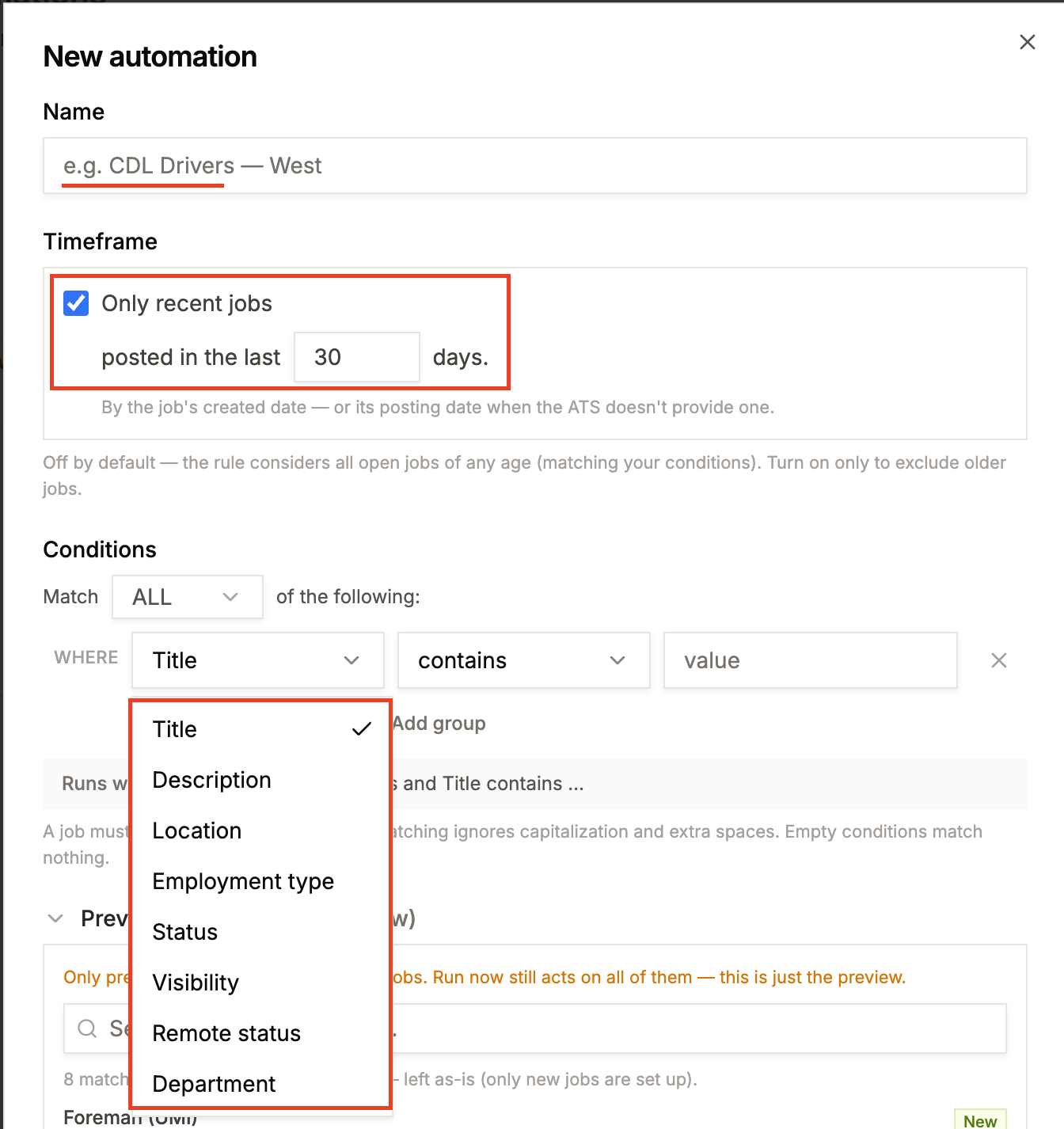
By default, a rule considers all open jobs of any age that match your conditions. To skip older jobs, tick Only recent jobs and enter how many days back to look (for example, jobs posted in the last 30 days). Classet uses the job's created date, or its posting date if your ATS doesn't provide a created date.
4. Set your conditions
Conditions decide which jobs the rule applies to. Choose how they combine in Match ALL / ANY of the following:
ALL: a job must meet every condition.
ANY: a job must meet at least one condition.
Click Add condition to add another row, or Add group to combine conditions in sets. Each condition has a field, an operator and a value. You can build conditions from these fields:
Field | What it checks |
|---|---|
Title | The job title |
Description | The job description text |
Location | City, state, ZIP or address, whatever your ATS provides |
Employment type | For example full-time, part-time, contract, seasonal |
Status | For example open, closed, draft |
Visibility | For example public or internal |
Remote status | On-site, remote or hybrid |
Department | The departments in your ATS |
Tips:
Text fields (Title, Description, Location) use contains, does not contain or is empty. Matching ignores capitalization and extra spaces.
Employment type, Status, Visibility and Remote status use is any of or is none of. Department also offers is empty.
A rule with no conditions matches nothing.
A summary under the conditions ("Runs when…") shows the rule in plain language, so you can check it before saving.
Example: to import every open, full-time job with "General Laborer" in the title, set Match to ALL and add: Title contains General Laborer; Status is any of Open; Employment type is any of Full-time.
5. Preview job matches
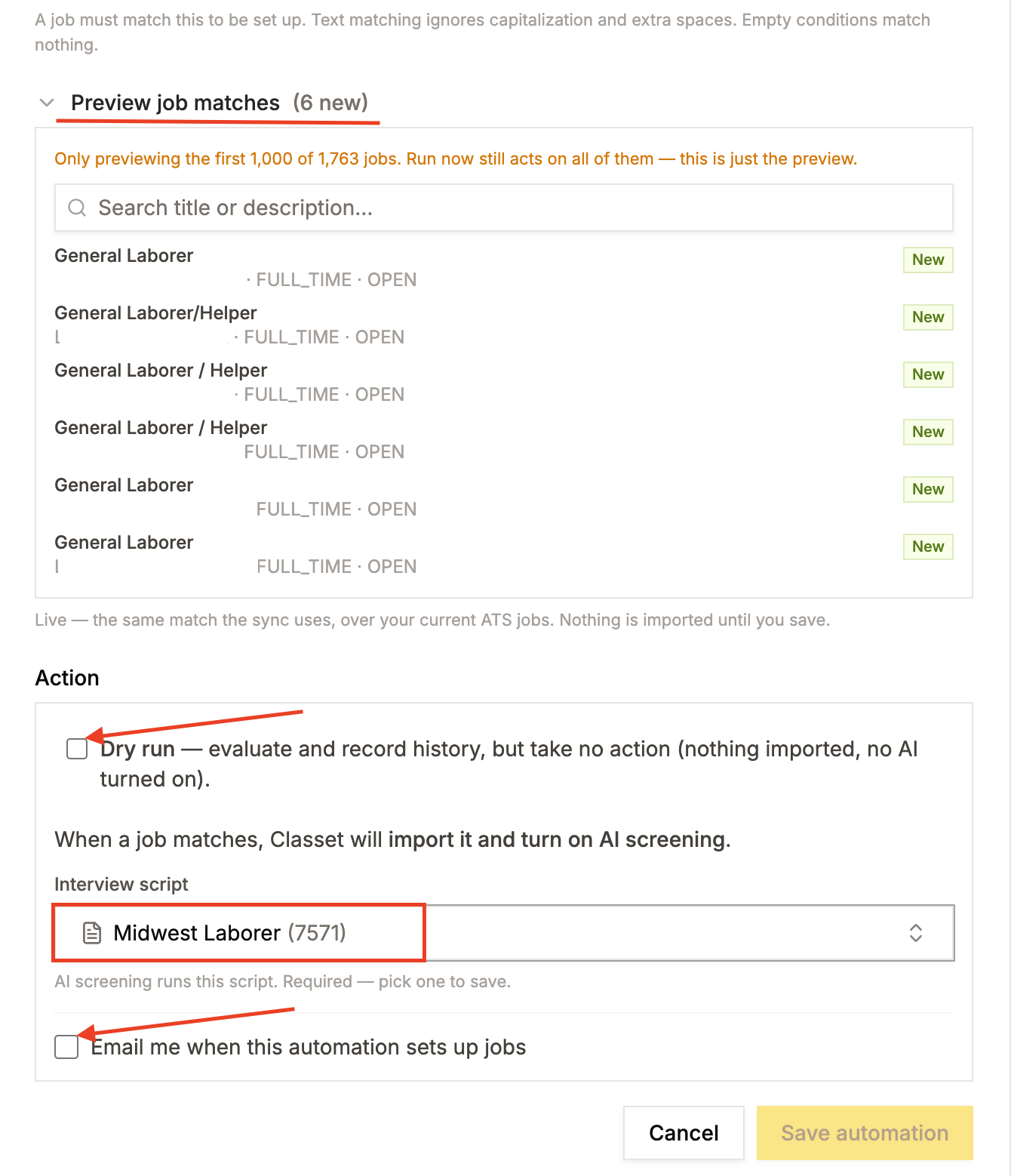
Open Preview job matches to see which jobs in your ATS match right now. Each job is tagged New (will be set up) or In system (already in Classet, left as-is). The number next to the heading is the count of new matches. You can search the preview by title or description.
The preview updates as you change conditions, and nothing is imported until you save.
6. Choose the action
Under Action, matching jobs are imported and AI screening is turned on. Set these options:
Interview script (required): the script AI screening uses for every job this rule sets up. See Full Step-by-Step Guide on Creating a Script.
Branch (only shown if your account has multiple branches): the branch imported jobs are assigned to. Leave it as org-level to make them visible across all branches. If your access is limited to specific branches, you must pick one of them.
Dry run (optional): Classet evaluates the rule and records what it would do in Activity, but imports nothing and turns on no AI screening. We recommend a dry run first, so you can check the results before going live.
Email me when this automation sets up jobs (optional): sends you an email when the rule sets up jobs.
7. Save
Click Save automation. It is saved once you pick an interview script.
Manage your automations
On the Automations tab, each rule shows whether it is Active or Paused, and whether it is a Dry run.
Pause or resume: use the toggle on the rule.
Run now: applies the rule to all currently matching jobs immediately instead of waiting for the next hourly run. Dry-run rules only simulate. Results appear in Activity.
Edit or Delete: use the menu on the rule.
Switching from a dry run to live
Open the rule, clear the Dry run checkbox and save. Check the preview first, because the next run will import new matching jobs and turn on AI screening.
Check what happened in Activity
The Activity tab lists each run, whether it was Scheduled or started with Run now, and the jobs it handled. Dry runs are labeled Dry run.
Undo: on a live run, Undo turns off AI screening for the jobs that run set up. Dry runs took no action, so they have nothing to undo.
Needs stage mapping: a job with this label was imported, but AI screening was not turned on because a required interview stage isn't mapped for that job. Map it on the job's Stage mapping page, and AI screening turns on automatically on the next run.
Have more questions, or don't see your ATS? Contact success@classet.ai