Manage Your Job Postings
Last updated: June 12, 2026
Once a job is live, you can edit its details, update the interview script, control publishing and AI screening, and manage your Indeed marketing campaign — all from the dashboard without having to create a new posting.
Access Job Menu
From the Dashboard, find your job in the Jobs list and click the ⋮ (three-dot) menu on the right. You'll see options to:
Edit Job Details — title, compensation, location, employment type, knockout questions, and job description
Edit Interview Script — update the questions Joy asks candidates
Job Settings — publish/unpublish, notifications, AI recruiter, and marketing
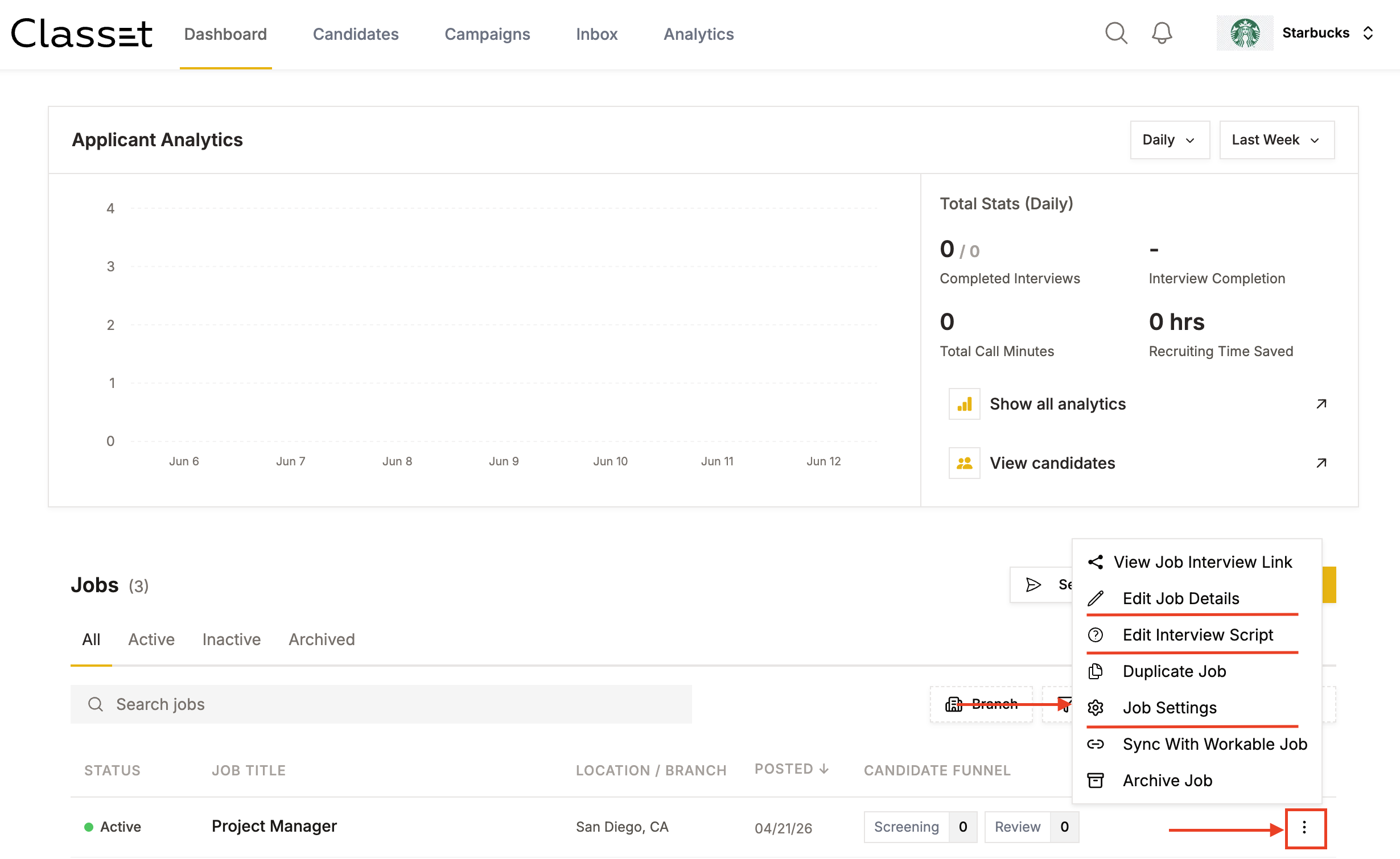
Edit Job Details
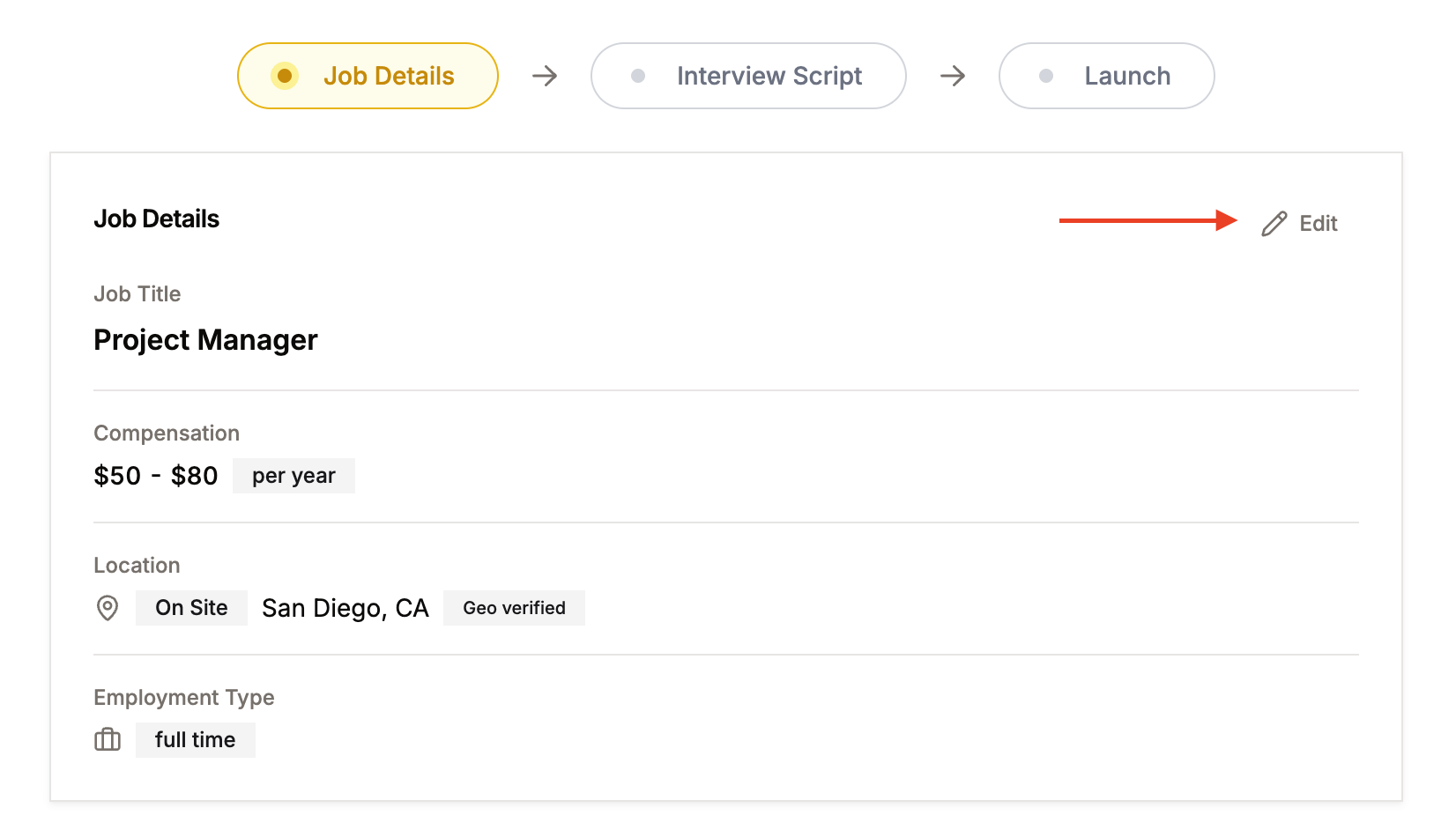
Click Edit Job Details. In the Job Details section, click Edit (top right) to make changes to the title, compensation, location, and employment type. When done, click Done to save that section.

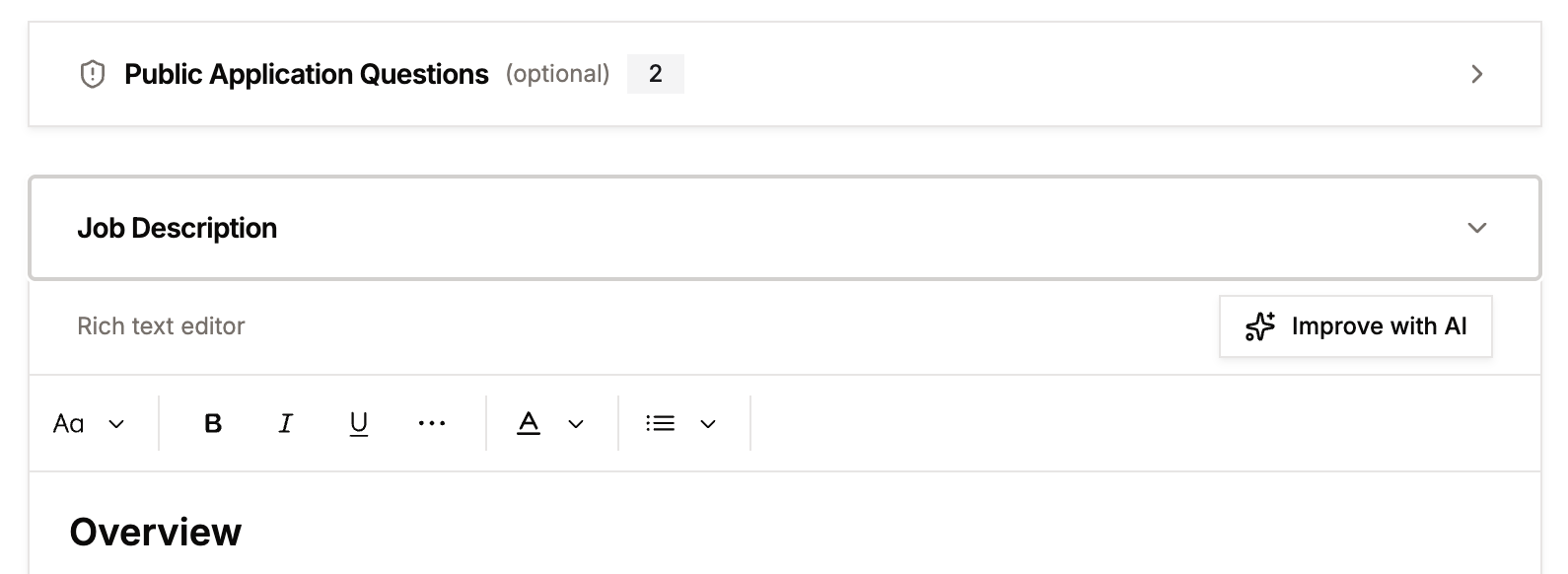
Scroll down to update the knockout questions or the job description. The description editor includes an Improve with AI button if you want to rewrite it quickly.
When you've finished all edits, click Continue at the bottom right to save and move to the script step.
Job Settings
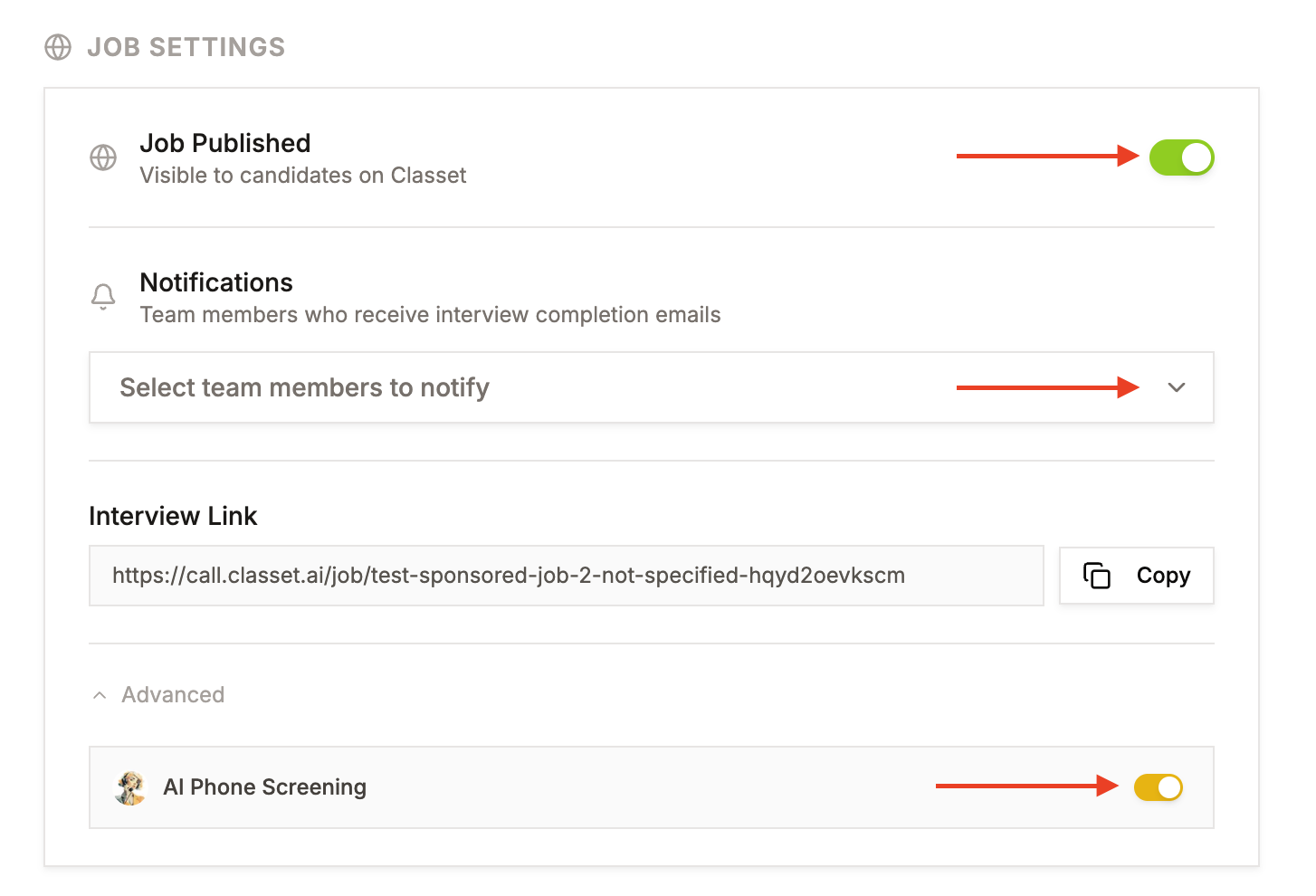
Click Job Settings from the three-dot menu. From here you can:
Publish / Unpublish — Toggle Job Published on or off. When off, the job is no longer visible to candidates on Classet.
Notifications — Select team members who should receive an email each time a candidate completes a call.
AI Phone Screening — Toggle AI Phone Screening (under Advanced) on or off to enable or disable Joy for this position.
Job Marketing (Indeed Sponsored Campaign)
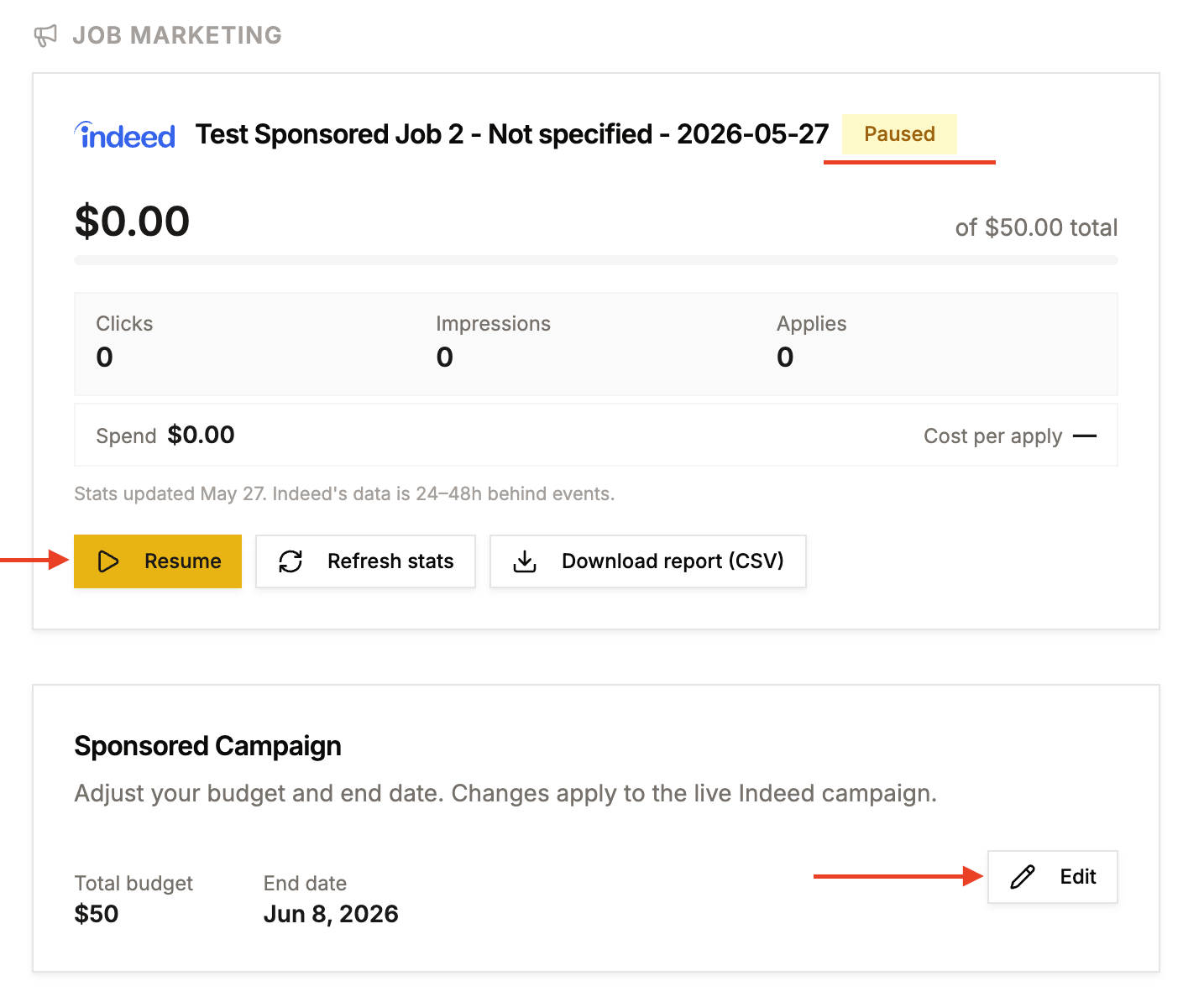
In Job Settings, scroll to the Job Marketing section to manage your Indeed campaign.
View performance — See Clicks, Impressions, Applies, Spend, and Cost per apply. Stats are updated from Indeed and may be 24–48 hours behind.
Pause / Resume — Click Pause to stop the campaign (no new sponsored traffic). Click Resume to restart it.
Tip: Pausing a campaign stops Indeed sponsored traffic but keeps the job published. If you want to stop all new applications, unpublish the job in Job Settings as well.
Refresh stats — Click Refresh stats to pull the latest data from Indeed.
Download report — Click Download report (CSV) to export campaign data.
Edit budget or end date — In the Sponsored Campaign section, click Edit to change the total budget or campaign end date. Changes apply to the live Indeed campaign immediately.
Have more questions? Contact success@classet.ai