How to Post a Job
Last updated: June 12, 2026
Posting a job in Classet takes three steps: fill in the job details, assign an interview script, and launch. The whole thing takes a few minutes — and once it's live, Joy can start screening candidates automatically.
Step 1: Job Details
Start a new posting. From the Dashboard, click + Post New Job in the top right.
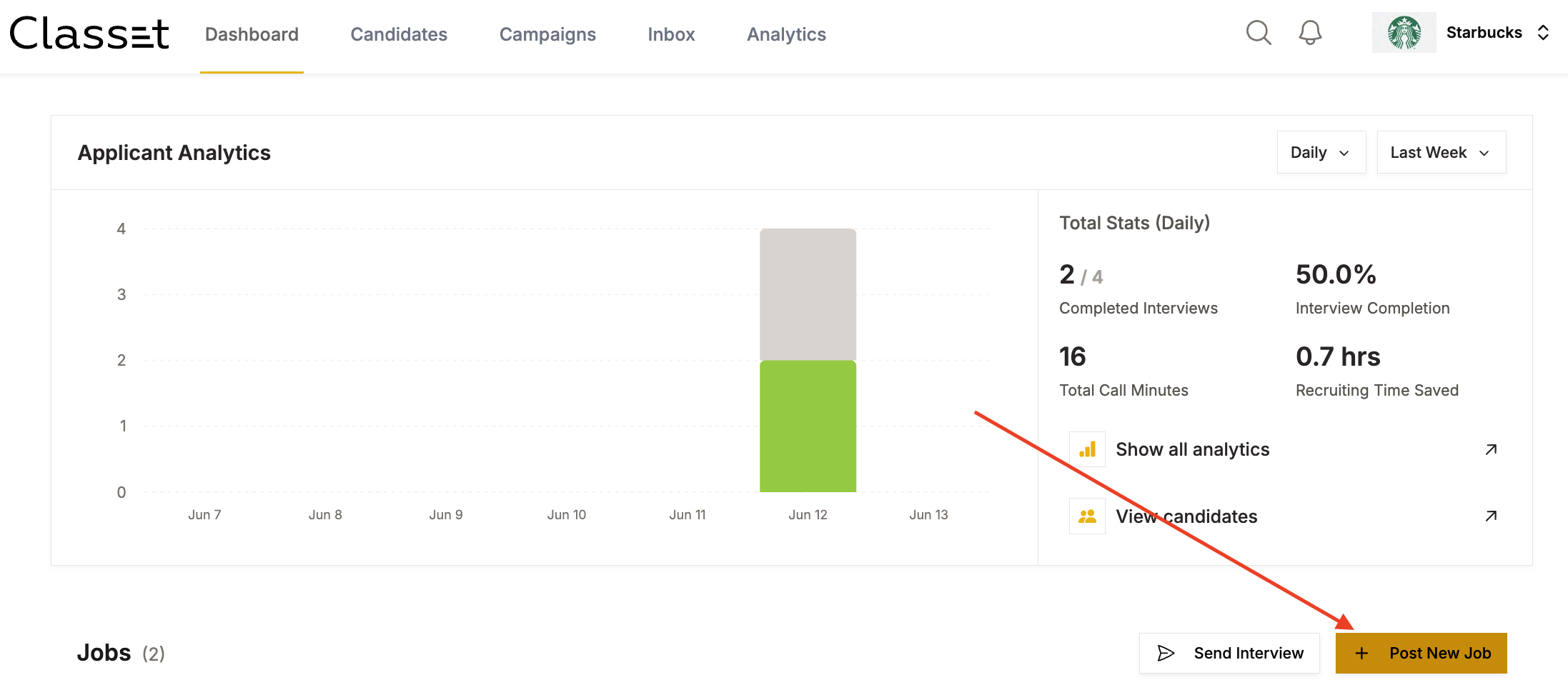
Tip: If you're hiring for a role you've posted before, use Duplicate Job from the three-dot menu on any existing job to start from a copy instead.
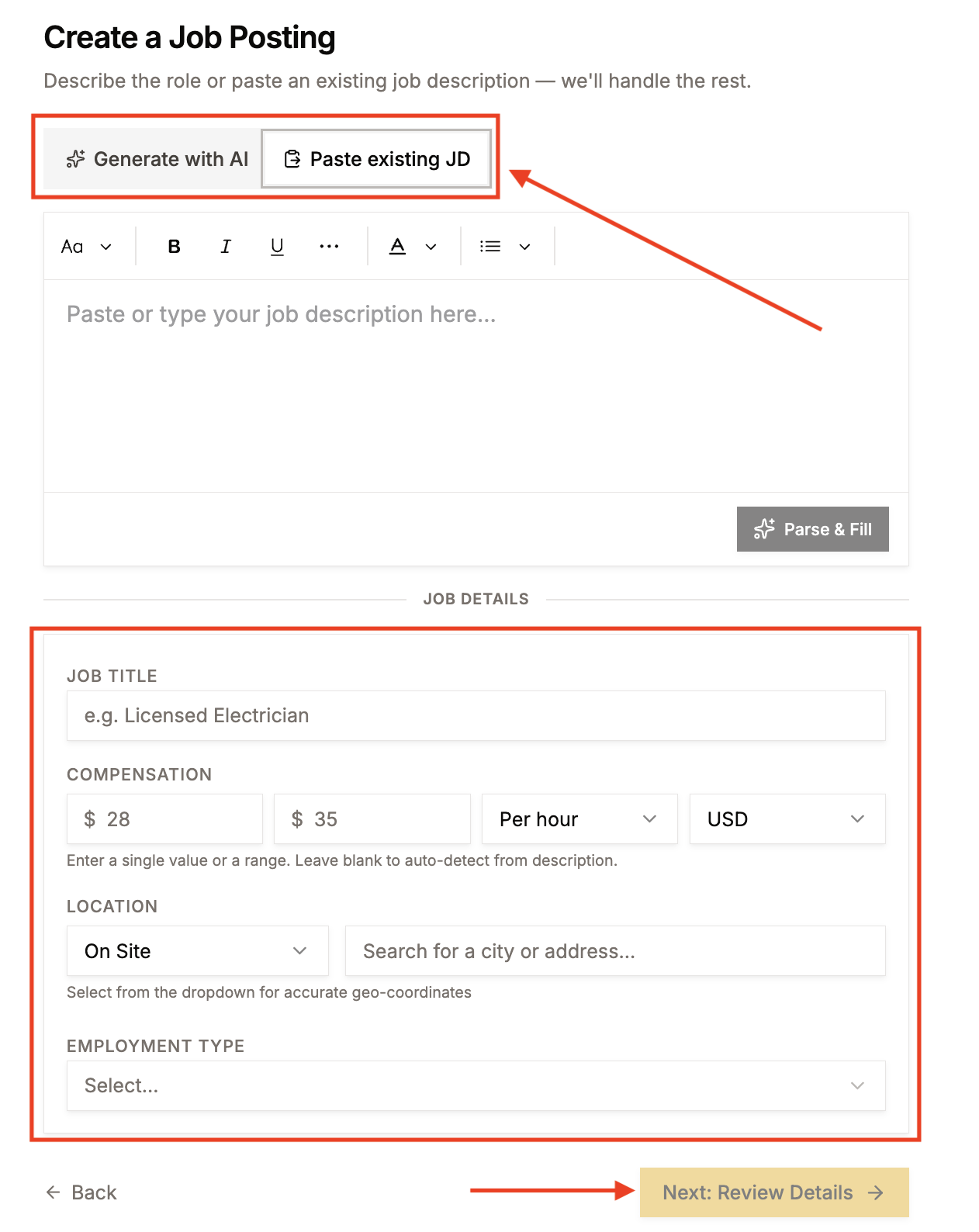
Write the job description. On the Create a Job Posting page, choose how to build your description:
Generate with AI — describe the role in plain language and let Classet write the JD
Paste existing JD — paste a description you already have, then click Parse & Fill to auto-populate the fields below
Fill in job details. Complete the required fields: Job Title, Compensation, Location, and Employment Type. Click Next: Review Details when done.
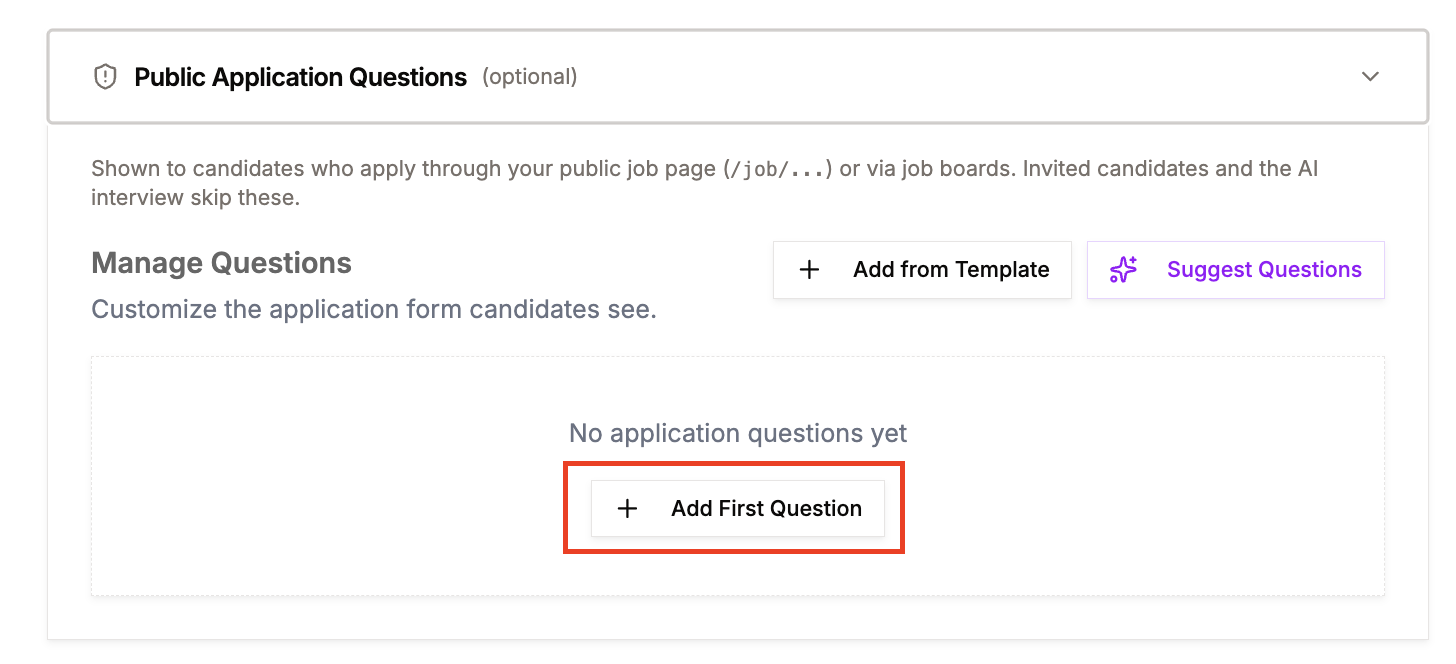
Add knockout questions (optional). On the next page you'll see a Public Application Questions section. These are questions candidates answer when they apply — before the AI interview. Use them to filter out candidates who don't meet must-have requirements.
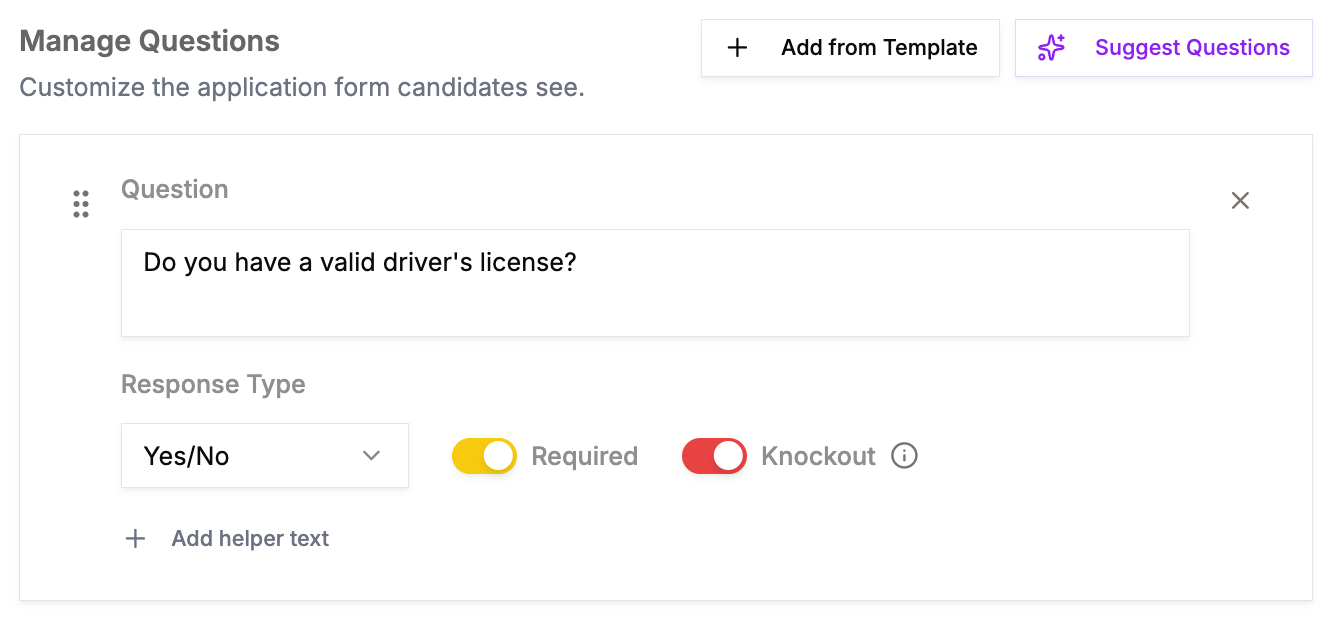
To add a question: click Add First Question, type your question, set the Response Type to Yes/No, and toggle on Required and Knockout. Candidates who give the wrong answer are automatically disqualified before proceeding to the interview.
You can also click Add from Template to use pre-built questions (e.g. "Do you have a valid driver's license?") or Suggest Questions to get AI-generated ideas based on your role.
Review the job description below the questions and make any final edits. When everything looks good, click Continue.
Step 2: Interview Script
On the Interview Script step, select the script Joy will use to screen candidates for this role. Browse the library on the left and click a script to preview its questions and flow on the right.
Once you've selected the right script, click Save Script To Job to proceed.
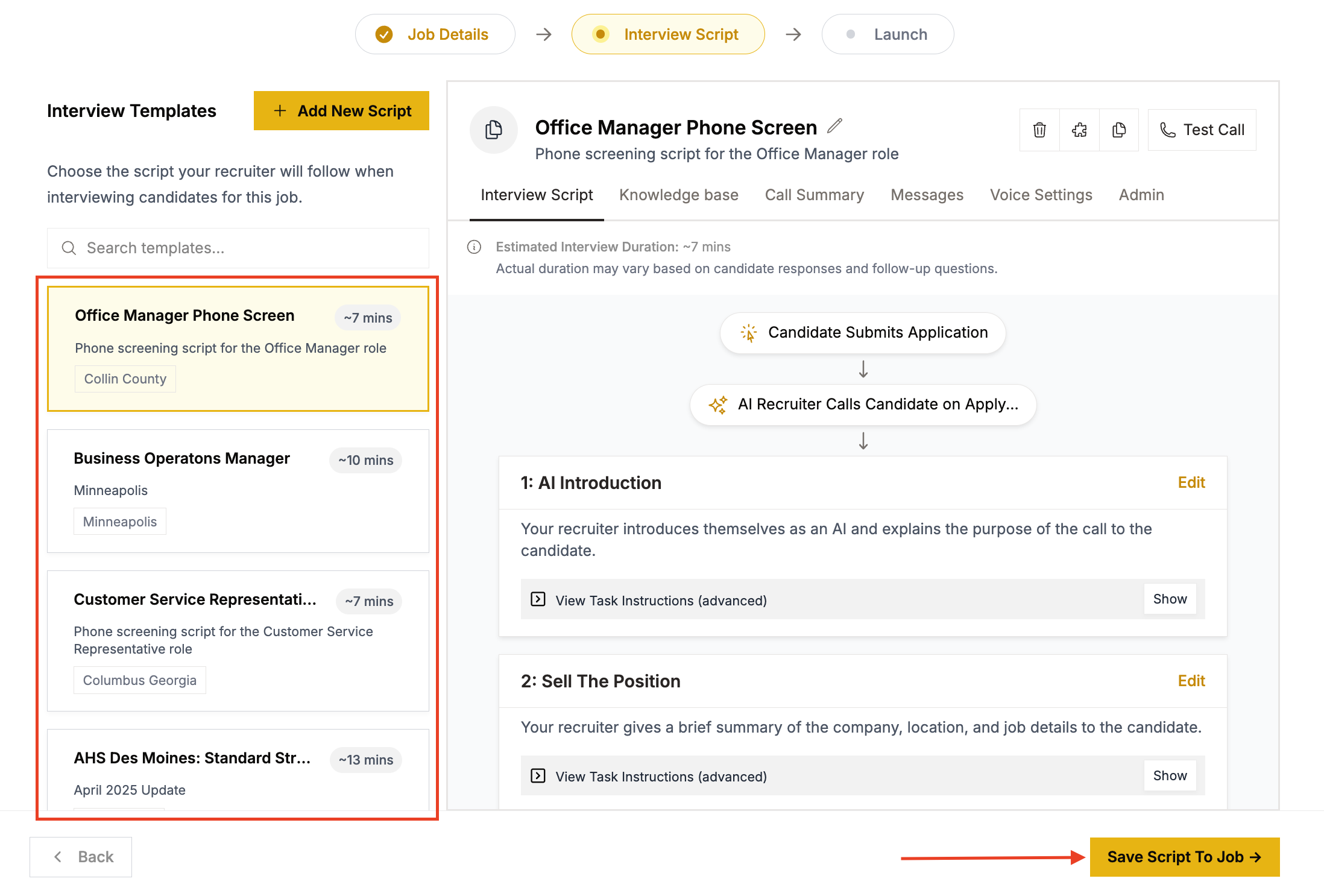
Don't see a script that fits? See How to Set Up a Script for guidance.
Step 3: Launch
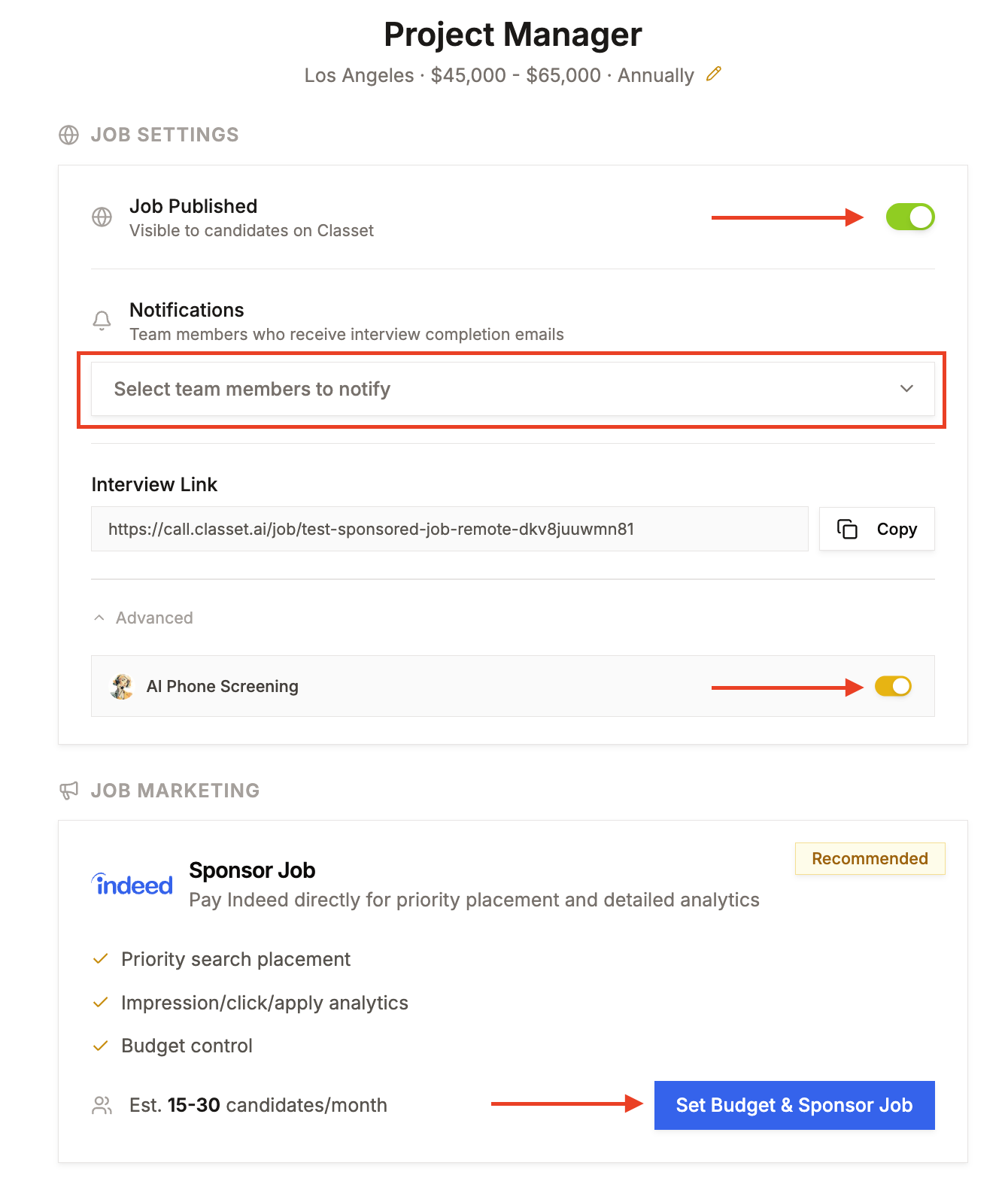
On the Launch page, configure the final settings before going live.
Publish the job. Toggle on Job Published so the job is visible to candidates on Classet.
Set up notifications. Under Notifications, select the team members who should receive an email each time a candidate completes an interview.
Enable AI screening (optional). Under Advanced, toggle on AI Phone Screening to activate Joy for this position. Joy will call new applicants automatically and screen them against your script.
Sponsor on Indeed (optional). Under Job Marketing, click Set Budget & Sponsor Job to launch an Indeed sponsored campaign and drive more applicants to the role.
That's it — your job is live and Joy is ready to screen.
Have more questions? Contact success@classet.ai