Sponsor a Job on Indeed (Apply Marketing Budget)
Last updated: June 12, 2026
Sponsoring a job gives it priority placement in relevant Indeed searches, putting it in front of more candidates faster. You set a budget and end date — Indeed uses past performance data to estimate how many applicants you can expect before you spend a dollar.
Steps
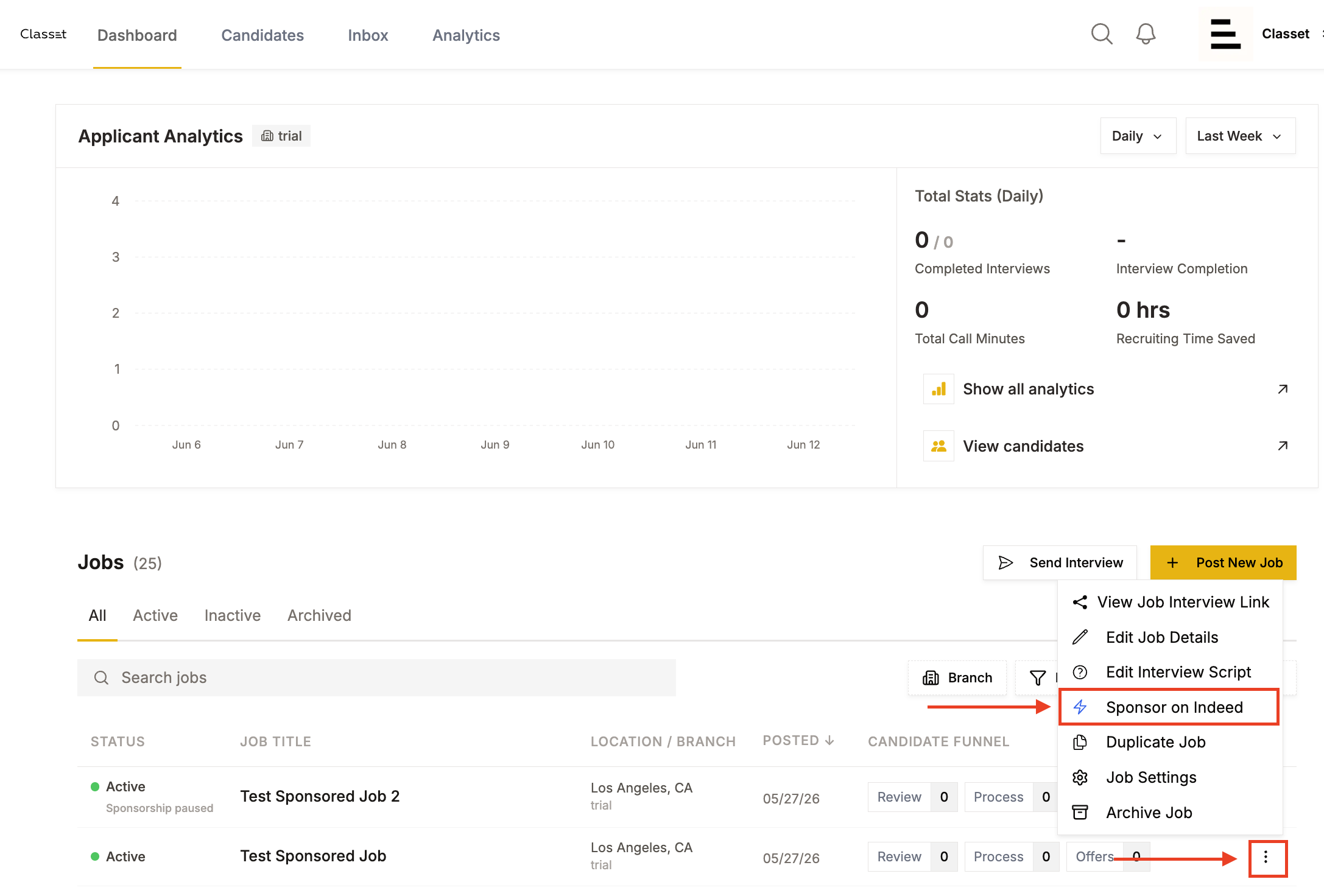
1. Open the job menu. From the Dashboard, find the job you want to sponsor and click the ⋮ (three-dot) menu. Select Sponsor on Indeed.
2. Set your campaign budget and dates. In the Sponsored Jobs modal:
Choose One-Time (fixed campaign) or Monthly (recurring)
Set an End date
Set End type — Fixed stops at the end date regardless of spend
Enter your Total budget in USD
The daily spend estimate updates automatically (e.g. $250 over 30 days = ~$8.33/day).
Note: You can pause, resume, or adjust the budget at any time from Job Settings → Job Marketing. Stats (clicks, impressions, applies) refresh from Indeed every 24–48 hours.
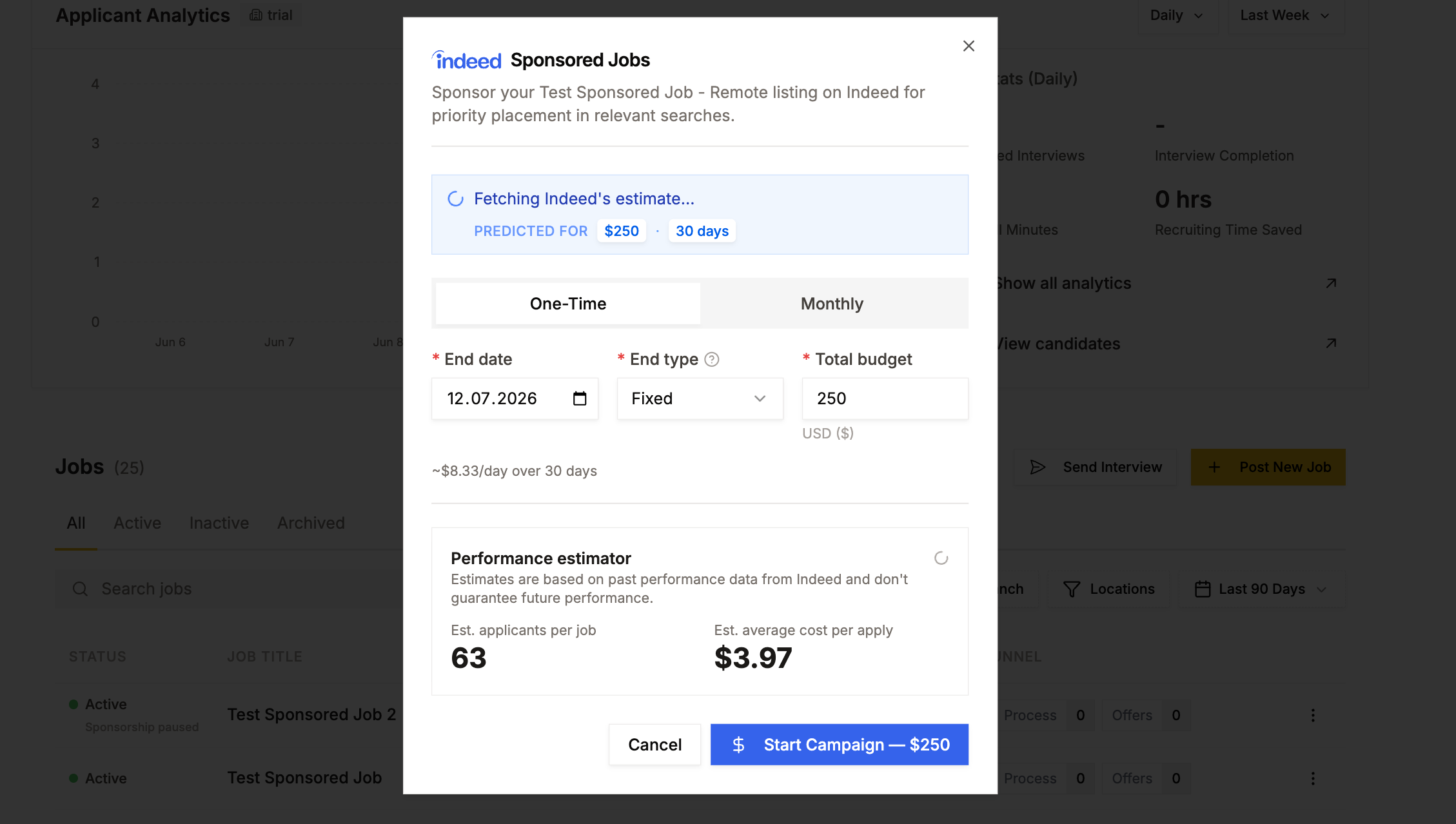
3. Review the performance estimate. Before confirming, check the Performance estimator at the bottom of the modal. It shows:
Est. applicants per job — projected number of applicants based on Indeed's historical data
Est. average cost per apply — what you'll likely pay per application
These are estimates, not guarantees.
4. Start the campaign. Click Start Campaign — $[amount] to launch. Your job will begin appearing as a sponsored listing on Indeed immediately.
Have more questions? Contact success@classet.ai