Reviewing Candidates & Understanding Statuses
Last updated: June 18, 2026
Once Joy starts screening, candidates move through stages automatically based on their interview outcome. This article explains how to navigate your candidate pipeline, understand each status, and take action on the people worth moving forward.
Open your candidate pipeline
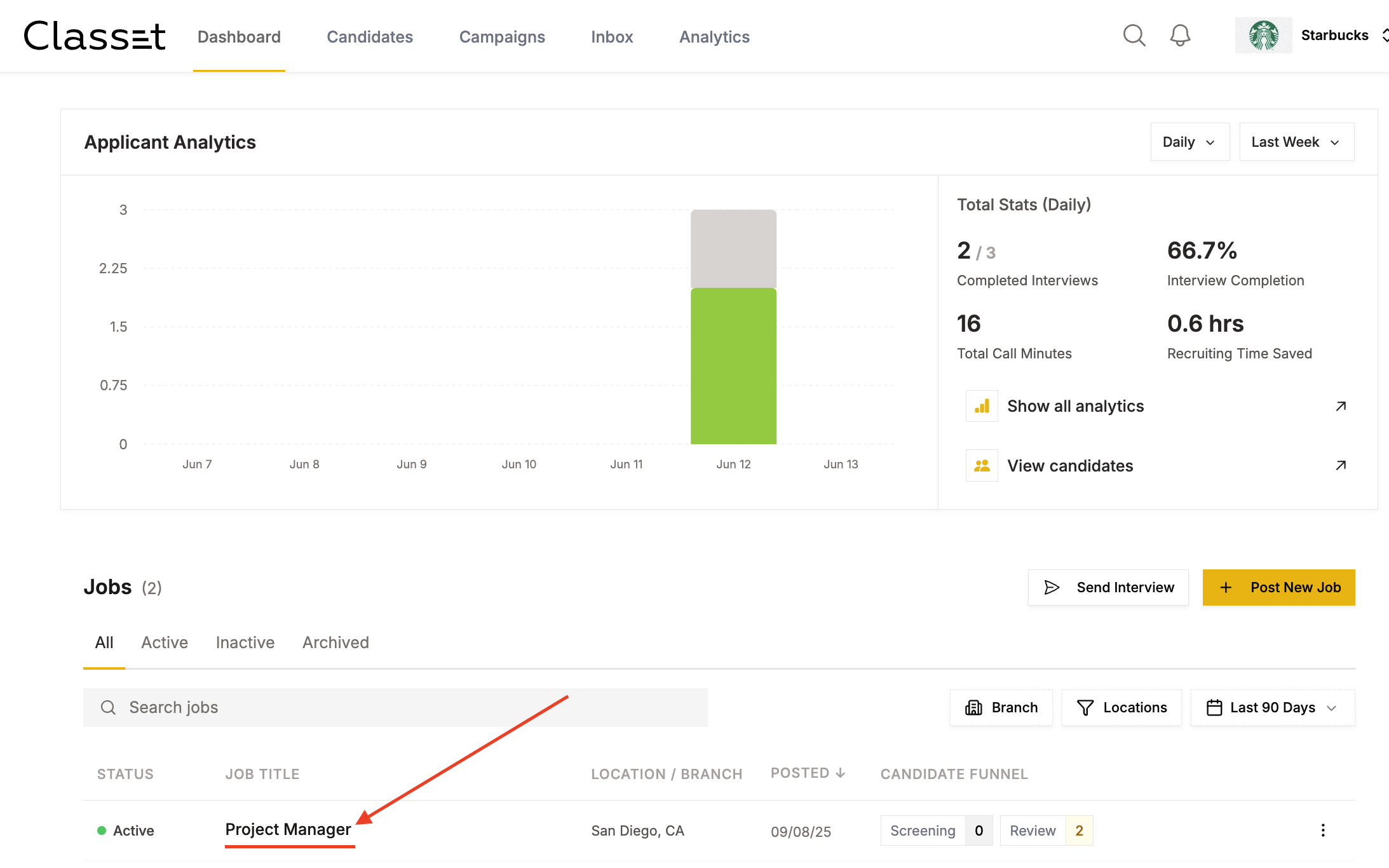
From the Dashboard, click on the job title you want to review. This opens the full candidate list for that position.
Choose your layout
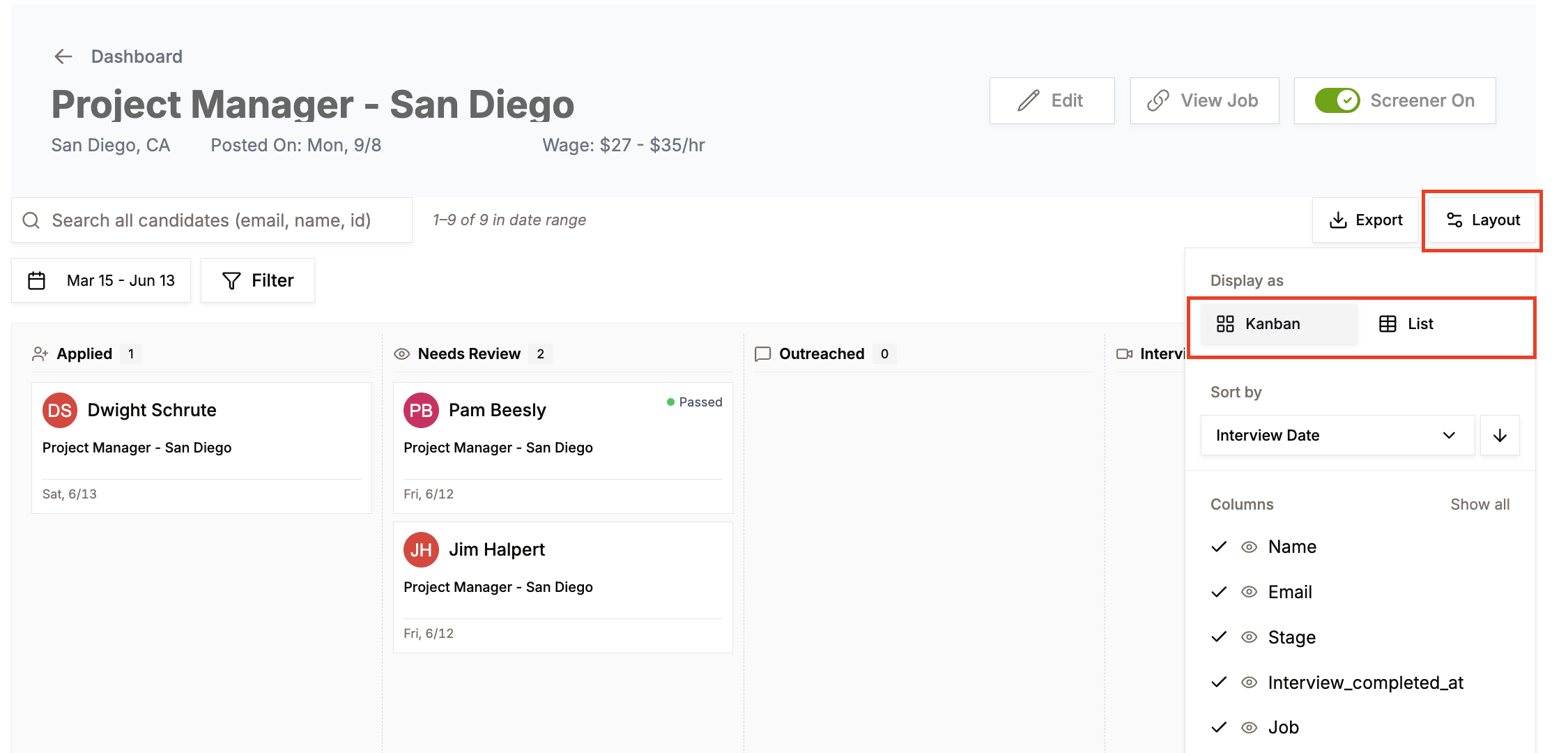
In the top right, click Layout to switch between views:
Kanban — shows candidates as cards organized by stage. Scroll left and right to see the full funnel.
List — shows all candidates in a sortable spreadsheet view.
Under Layout you can also choose which columns to display and how to sort candidates (e.g. by Interview Date).
Search and filter
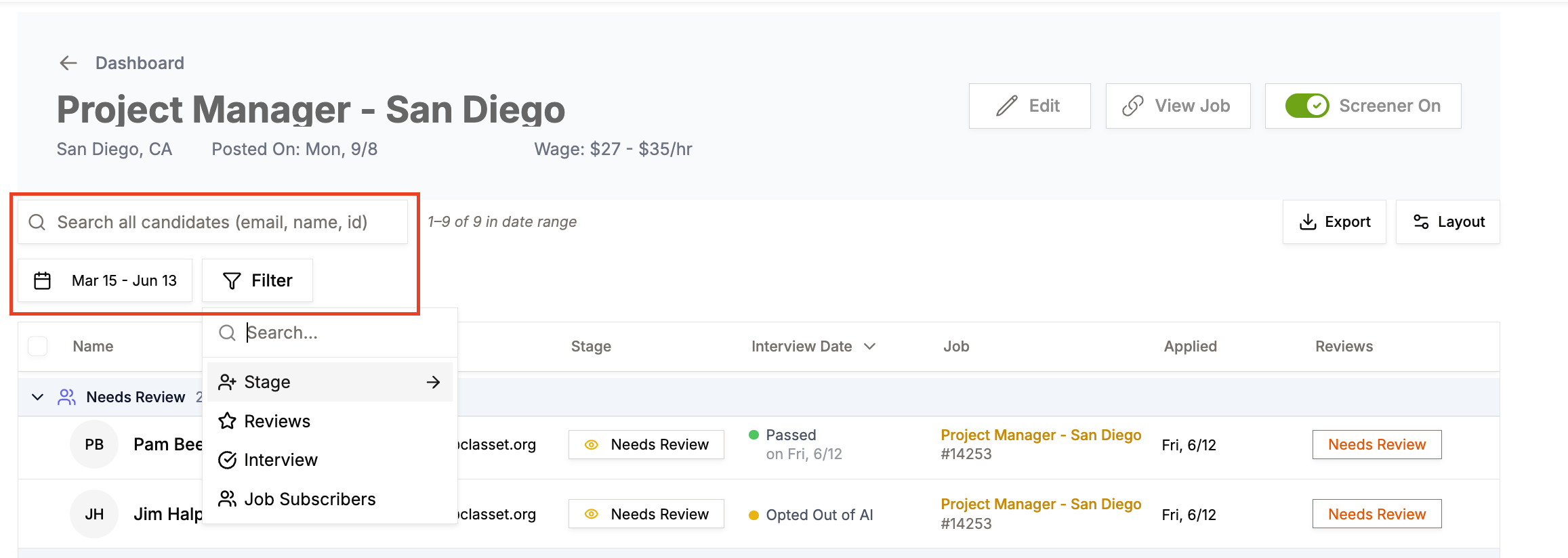
On the left side of the candidate list you can:
Search by candidate name, email, or ID
Filter by date range to narrow the view
Filter by Stage, Interview outcome, Reviews, or other criteria
The fastest way to find candidates who need your attention is to filter by Stage → Needs Review.
Understanding candidate stages
Stage | What it means |
|---|---|
Applied | This status denotes 2 stages:
|
Needs Review | This is the stage candidates move to after completing the AI interview. These are your priority candidates. |
Outreached |
|
Interview | No automatic movement - use these stage to keep track of candidate statuses across your team |
Offer | No automatic movement - use these stage to keep track of candidate statuses across your team |
Hired | No automatic movement - use these stage to keep track of candidate statuses across your team |
Disqualified | Candidate completed the interview but did not meet a must-have requirement, or you moved them here after decided they are not a fit for your role |
Future Leads | Candidate applied but remained unresponsive and never started the interview. |
Review an individual candidate
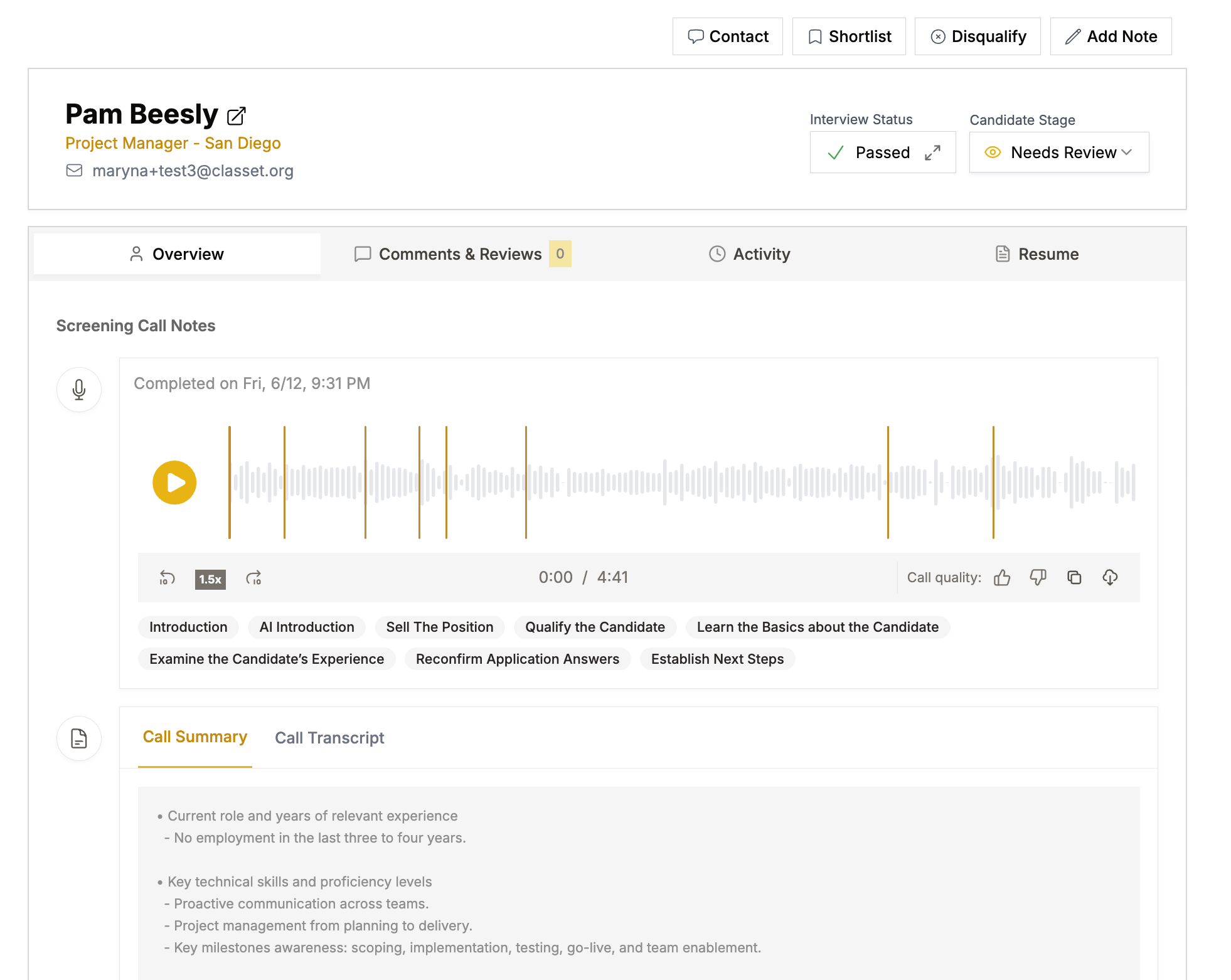
Click on a candidate's name to open their profile. From here you can:
Contact info — email and phone number are at the top of the profile
Call recording — play the full Joy interview at any speed (1x, 1.5x, 2x)
Call Summary — Joy's structured summary of the candidate's answers, skills, and key details
Call Transcript — full text of the interview if you need to dig deeper
Tabs — switch between Overview, Comments & Reviews, Activity, and Resume
Take action on a candidate
From the top right of the candidate profile:
Contact — send the candidate an SMS directly from Classet
Shortlist — flag the candidate for easy reference
Disqualify — remove them from consideration
Add Note — leave an internal note for your team
Candidate Stage dropdown — move the candidate to the next stage (e.g. Needs Review → Hired)

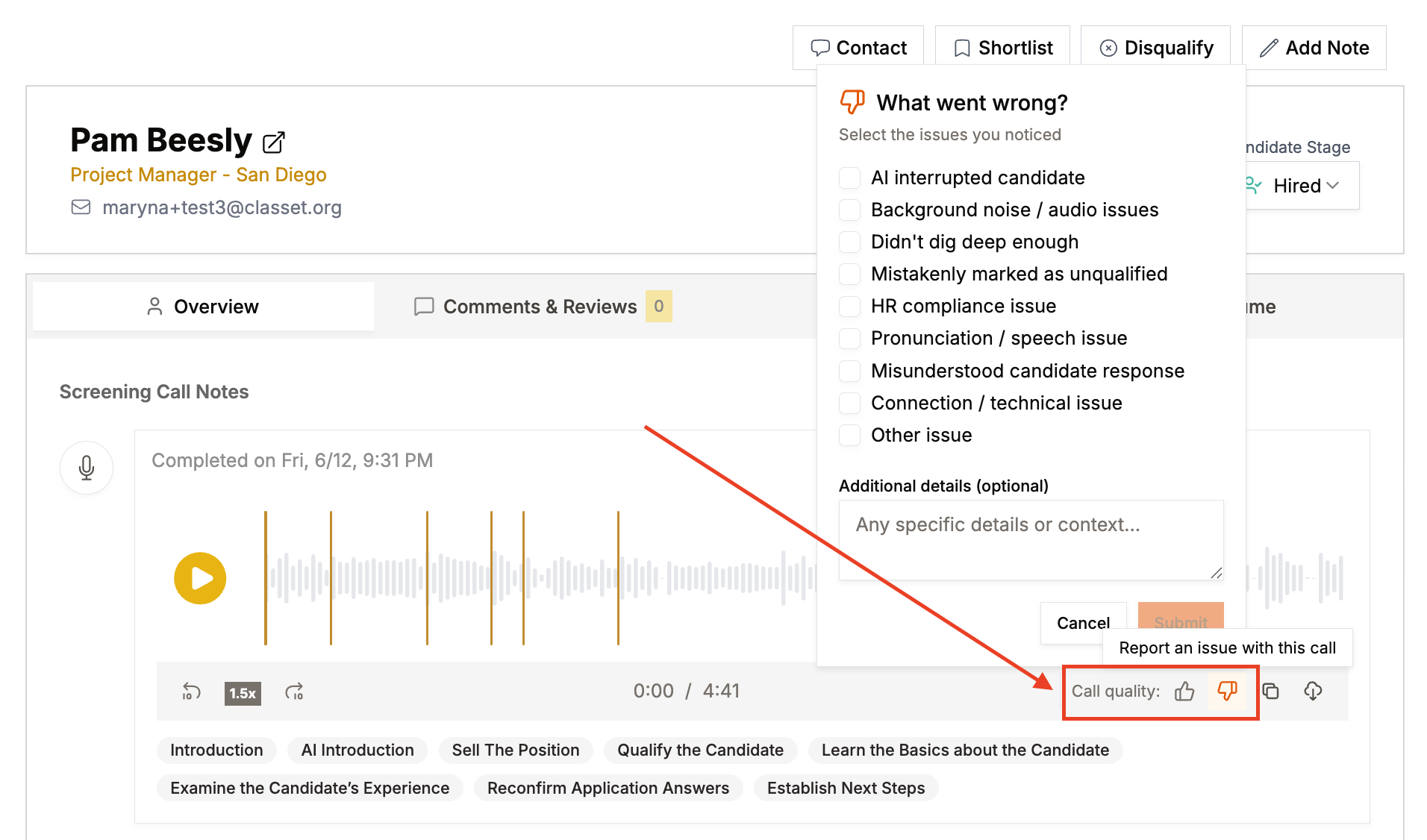
Report a call quality
If something went wrong during a Joy call — audio issues, a misunderstood answer, or an incorrect qualification decision — you can flag it directly on the call recording.
In the Screening Call Notes section, click the thumbs down icon next to "Call quality." Select the issue that applies (e.g. Background noise / audio issues, Mistakenly marked as unqualified, Misunderstood candidate response), add any additional context, and click Submit.
This sends feedback to the Classet team to help improve future calls.
Have more questions? Contact success@classet.ai